How to use negative prompts in Stable Diffusion?
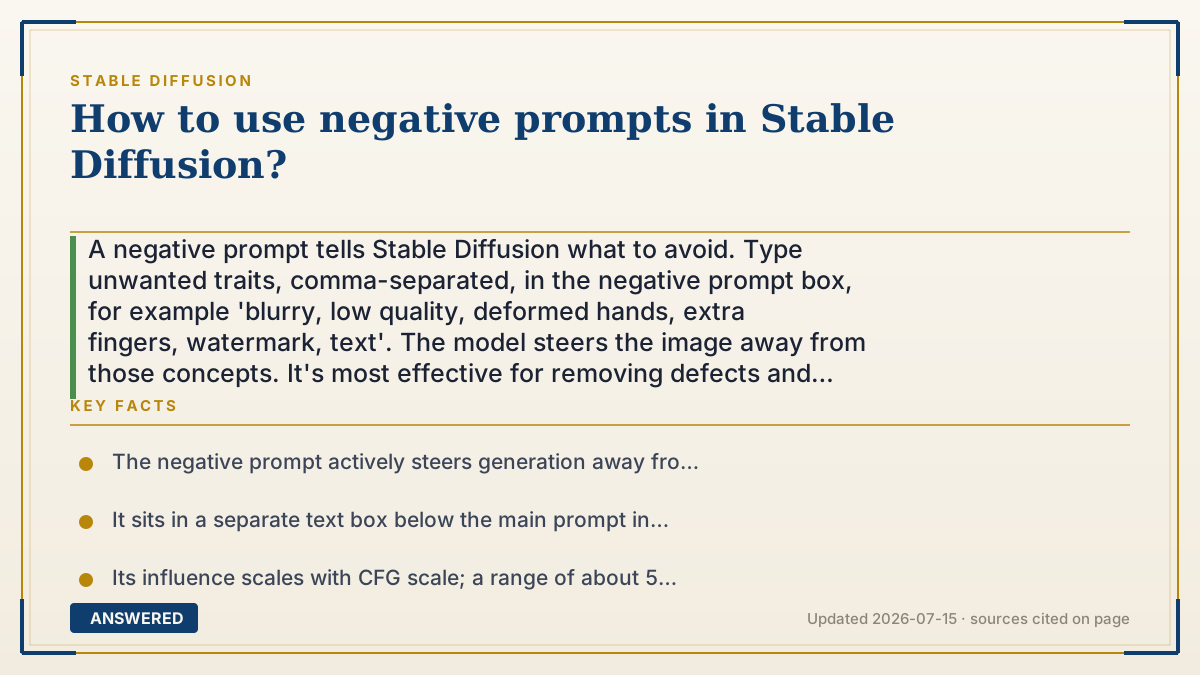
A negative prompt tells Stable Diffusion what to avoid. Type unwanted traits, comma-separated, in the negative prompt box, for example 'blurry, low quality, deformed hands, extra fingers, watermark, text'. The model steers the image away from those concepts. It's most effective for removing defects and unwanted styles, and works best with a CFG scale around 5 to 9.
Why — the first-principles explanation
A negative prompt works because of how guidance steers the image. At each denoising step, Stable Diffusion computes two directions: one toward your positive prompt and one toward your negative prompt. It then moves toward the positive and away from the negative. The negative prompt is not ignored text; it is an active repelling force.
This is why negatives are great at removing recurring flaws. If your images keep coming out blurry or with mangled hands, adding 'blurry, deformed hands, extra fingers' pushes every generation away from those features. It's also useful for excluding styles or objects, like adding 'cartoon' to keep a realistic photo from drifting toward illustration.
The strength of the effect scales with the CFG (guidance) scale. Higher CFG makes both the positive and negative pull stronger. At a very low CFG the negative barely matters; at a moderate CFG (about 5 to 9) it has clear influence without distorting the image.
A common mistake is stuffing dozens of negatives 'just in case'. Every term you add competes for the model's attention and can subtly change results in unexpected ways. Start with a short, focused negative prompt targeting the actual problems you see, and add terms only when a specific defect keeps appearing.
An example that makes it click
Imagine steering a shopping cart. The positive prompt is 'go toward the bakery'. The negative prompt is 'stay away from the wet floor'. The cart moves toward bread while curving around the puddle.
If you list too many things to avoid, 'no puddle, no crowd, no squeaky wheel, no bright lights', you spend all your energy dodging and barely reach the bakery. So you name the one puddle that keeps tripping you, steer around it, and get your bread.
How to do it
- Find the 'Negative prompt' text box, located just below the main prompt box in AUTOMATIC1111 or ComfyUI.
- Type unwanted traits separated by commas, such as 'blurry, low quality, deformed, extra fingers, watermark, text'.
- Keep the list short and targeted to the defects you actually see.
- Set CFG scale around 5 to 9 so the negative prompt has clear influence.
- Generate, review the result, and add a specific term only if a particular flaw persists.
- For faces or hands, add targeted negatives like 'extra limbs, fused fingers, mutated hands'.
Key facts
- The negative prompt actively steers generation away from listed concepts using classifier-free guidance.
- It sits in a separate text box below the main prompt in interfaces like AUTOMATIC1111 and ComfyUI.
- Its influence scales with CFG scale; a range of about 5 to 9 gives clear effect without distortion.
- Common defect negatives include 'blurry, low quality, deformed hands, extra fingers, watermark, text'.
- Overloading the negative prompt with many terms can dilute focus and shift results unpredictably.
Open the official product and verify the active account, workspace and data settings before you begin.
▶ The 60-second explainer (script)
Here's how to use negative prompts in Stable Diffusion. A negative prompt simply tells the model what to avoid. Find the box labeled 'negative prompt', right below your main prompt box, and type the things you don't want, separated by commas. For example: blurry, low quality, deformed hands, extra fingers, watermark, text. Behind the scenes, at every step the model steers toward your positive prompt and away from your negative one, so those terms act like a repelling force. This is perfect for killing recurring problems, like mangled hands or an unwanted cartoon look. One tip: keep the list short and focused. Don't dump fifty words in there 'just in case', because every term competes for attention and can shift your image in odd ways. Start with the few flaws you actually see, and make sure your CFG scale is around five to nine so the negative has real influence. Generate, check, and add a term only if a specific defect keeps showing up.
What authoritative sources say
People also ask
Where is the negative prompt box?
In AUTOMATIC1111 and ComfyUI it sits directly below the main prompt box. Enter comma-separated terms you want the model to avoid.
What should I always put in a negative prompt?
A common starter is 'blurry, low quality, deformed, extra fingers, watermark, text'. Adjust based on the specific flaws you see.
Can a negative prompt remove specific objects?
Yes, to a degree. Adding an object like 'hat' can reduce hats appearing, though results are not guaranteed for every generation.
Does a longer negative prompt work better?
Not necessarily. Too many terms can dilute focus and change results unpredictably. Keep it short and targeted.
The same question, asked other ways
- What is a negative prompt in Stable Diffusion?