How to use Claude Code for beginners?
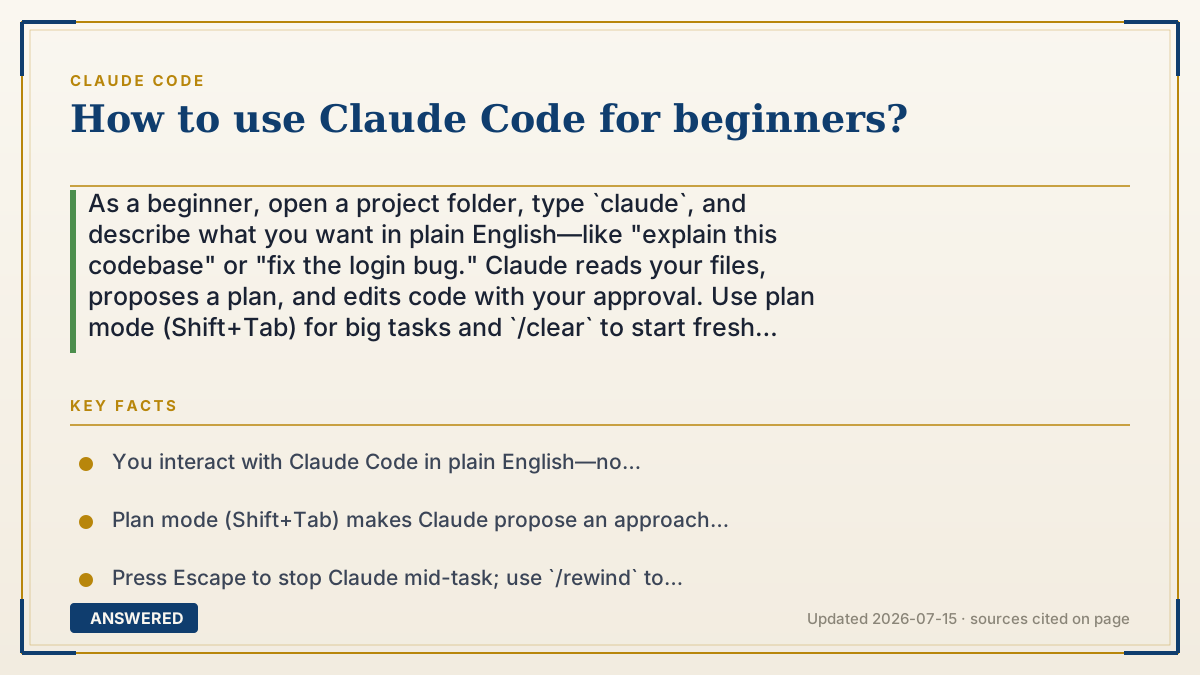
As a beginner, open a project folder, type `claude`, and describe what you want in plain English—like "explain this codebase" or "fix the login bug." Claude reads your files, proposes a plan, and edits code with your approval. Use plan mode (Shift+Tab) for big tasks and `/clear` to start fresh between jobs.
Why — the first-principles explanation
Claude Code works differently from autocomplete tools because it is agentic: instead of just suggesting the next line, it can read many files, run commands, edit code, and check its own work in a loop. You give it a goal, and it figures out the steps. That's why the main skill you need isn't coding syntax—it's describing what you want clearly.
Under the hood, Claude has a limited context window—the amount of text it can hold at once. Everything it reads (your files, logs, its own replies) fills that window. This is why two habits matter from day one: keep requests specific so it reads only what's needed, and use `/clear` to wipe the slate when you switch tasks so old context doesn't crowd out the new job.
The safety valve for beginners is plan mode. Press Shift+Tab and Claude explores your code and proposes an approach before touching anything. You approve or correct the plan first, which prevents expensive wrong turns. Combined with the ability to hit Escape to stop it mid-task, this means you're always in control—Claude suggests, you decide.
An example that makes it click
Think of Claude Code like a very fast intern who has read your whole project. You don't hand them a keyboard shortcut—you say, 'Add a logout button to the settings page and make sure it clears the session.' They sketch a plan on a sticky note first (plan mode), you nod, and then they do the work while you watch. If they start painting the wrong wall, you just say 'stop.' When the task is done, you clear the desk (`/clear`) before starting the next one so nothing gets mixed up.
How to do it
- Open your terminal, go to your project with `cd your-project`, and type `claude`.
- Start with a read-only task to build trust: `claude "explain what this project does"`.
- For real changes, press Shift+Tab to enter plan mode so Claude proposes an approach before editing.
- Describe the task specifically, e.g. "add input validation to the login function in auth.ts."
- Review each proposed edit; approve, correct, or press Escape to stop and redirect.
- Run `/clear` when you switch to an unrelated task, and use `/rewind` to undo if something goes wrong.
Key facts
- You interact with Claude Code in plain English—no special command syntax is required for tasks.
- Plan mode (Shift+Tab) makes Claude propose an approach before making any edits.
- Press Escape to stop Claude mid-task; use `/rewind` to restore code to an earlier checkpoint.
- Use `/clear` between unrelated tasks so old context doesn't waste the limited context window.
- Specific prompts work better and cost less than vague ones like "improve this codebase."
Open the official product and verify the active account, workspace and data settings before you begin.
▶ The 60-second explainer (script)
New to Claude Code? Here's the whole thing in a minute. Open a terminal, go into your project folder, and type claude. Now just talk to it in plain English. Start safe: ask it to explain what your project does. When you're ready to change something, press Shift-Tab to enter plan mode—Claude will explore your code and propose an approach before it touches a single file. You approve the plan, and it does the work while you watch each edit. If it heads the wrong way, press Escape to stop, or use rewind to undo. Two beginner habits pay off fast: be specific—say 'add a logout button to the settings page' instead of 'make it better'—and run slash-clear when you switch tasks so old context doesn't clog things up. That's it. You describe the goal; Claude handles the steps; you stay in control.
What authoritative sources say
People also ask
Do I need to know how to code to use Claude Code?
Basic familiarity helps, but you drive it in plain English. It's designed to read your project and explain or change code for you.
What is plan mode?
Press Shift+Tab and Claude proposes an approach before editing, so you can approve or correct the plan first.
How do I undo a change I don't like?
Press Escape to stop mid-task, or use `/rewind` (or double-tap Escape) to restore the conversation and code to an earlier point.
Why does my session feel slow or confused?
Old context may be crowding the window. Run `/clear` between unrelated tasks and keep prompts specific.