How to use Luma Dream Machine?
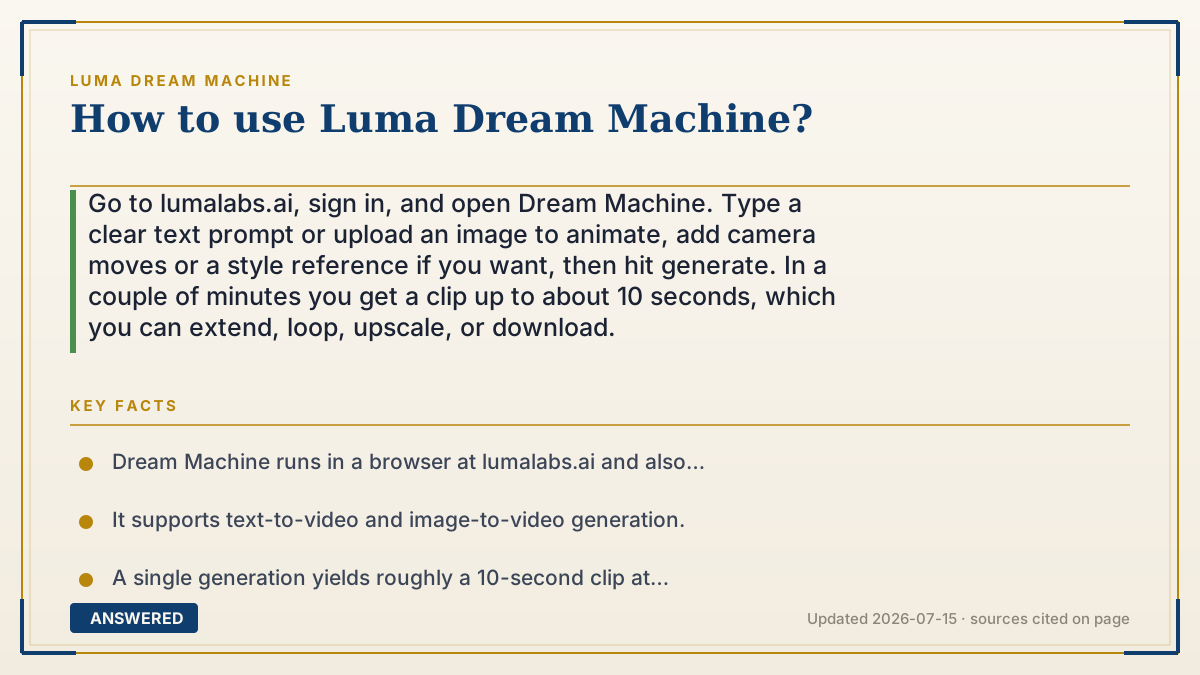
Go to lumalabs.ai, sign in, and open Dream Machine. Type a clear text prompt or upload an image to animate, add camera moves or a style reference if you want, then hit generate. In a couple of minutes you get a clip up to about 10 seconds, which you can extend, loop, upscale, or download.
Why — the first-principles explanation
Using Dream Machine well comes down to understanding that you are directing a model, not filming a scene. The AI only knows what you tell it, so the quality of your video is mostly the quality of your prompt. Describe the subject, the action, the setting, the mood, and the camera movement in plain, natural language, and the Ray model has enough to work with.
The second key idea is that Dream Machine is built as a loop, not a one-shot. Your first clip is a starting point. You then use tools like Extend to lengthen it, Loop to make it repeat seamlessly, and reference tags to keep a character or style consistent. Treating each generation as a draft you refine is what separates a random clip from a usable shot.
Finally, everything is metered in credits, so there is a real cost to trial-and-error. That is why writing a specific prompt up front, and starting from an image when you need control over the look, saves both time and credits compared to blindly regenerating.
An example that makes it click
Think of it like ordering a custom cake by text message. If you just say 'a cake,' you get whatever the baker imagines. If you say 'a two-layer chocolate cake with gold sprinkles and 'Happy Birthday Mia' in blue icing, photographed from above,' you get almost exactly what you pictured. Dream Machine is the baker: the more specific your description, the closer the result. And if the first cake is close but not perfect, you send a follow-up note to tweak it instead of starting over.
How to do it
- Open lumalabs.ai and sign in, then select Dream Machine.
- Choose text-to-video and write a detailed prompt, or upload an image for image-to-video.
- Add camera motion (pan, orbit, zoom) and optional @style or @character references.
- Click generate and wait a couple of minutes for the clip (up to ~10 seconds).
- Refine with Extend, Loop, or upscale, then download your finished video.
Key facts
- Dream Machine runs in a browser at lumalabs.ai and also as an iOS app.
- It supports text-to-video and image-to-video generation.
- A single generation yields roughly a 10-second clip at up to 1080p (as of 2026-07).
- Tools include Extend, Loop, camera motion, and @style / @character references.
- Every generation consumes credits, so specific prompts save wasted attempts.
Open the official product and verify the active account, workspace and data settings before you begin.
▶ The 60-second explainer (script)
Here is how to use Luma Dream Machine. First, go to lumalabs dot ai, sign in, and open Dream Machine. Now the important choice: you can type a text prompt to create a video from scratch, or upload an image to bring a still picture to life. Either way, be specific. The AI only knows what you tell it, so describe the subject, the action, the setting, the mood, and the camera movement in plain language. Add a pan, orbit, or zoom if you want cinematic motion. Then hit generate, and in a couple of minutes you get a clip about ten seconds long. Do not treat that first clip as final. Use Extend to make it longer, Loop to make it repeat smoothly, and upscale it for sharper resolution. Just remember each generation costs credits, so a clear, detailed prompt up front saves you from burning credits on do-overs. When you are happy, download it and you are done.
What authoritative sources say
People also ask
Do I need to install anything?
No. Dream Machine runs in a web browser at lumalabs.ai, and there is also an iOS app.
Text-to-video or image-to-video, which is better?
Image-to-video gives more control over the exact look; text-to-video is faster when you only have an idea.
How long does one clip run?
A single generation is about 10 seconds; you can chain Extends to reach roughly 30 seconds.
How do I get better results?
Write specific prompts describing subject, action, setting, mood, and camera motion, then refine with Extend and Loop.