How to use NotebookLM?
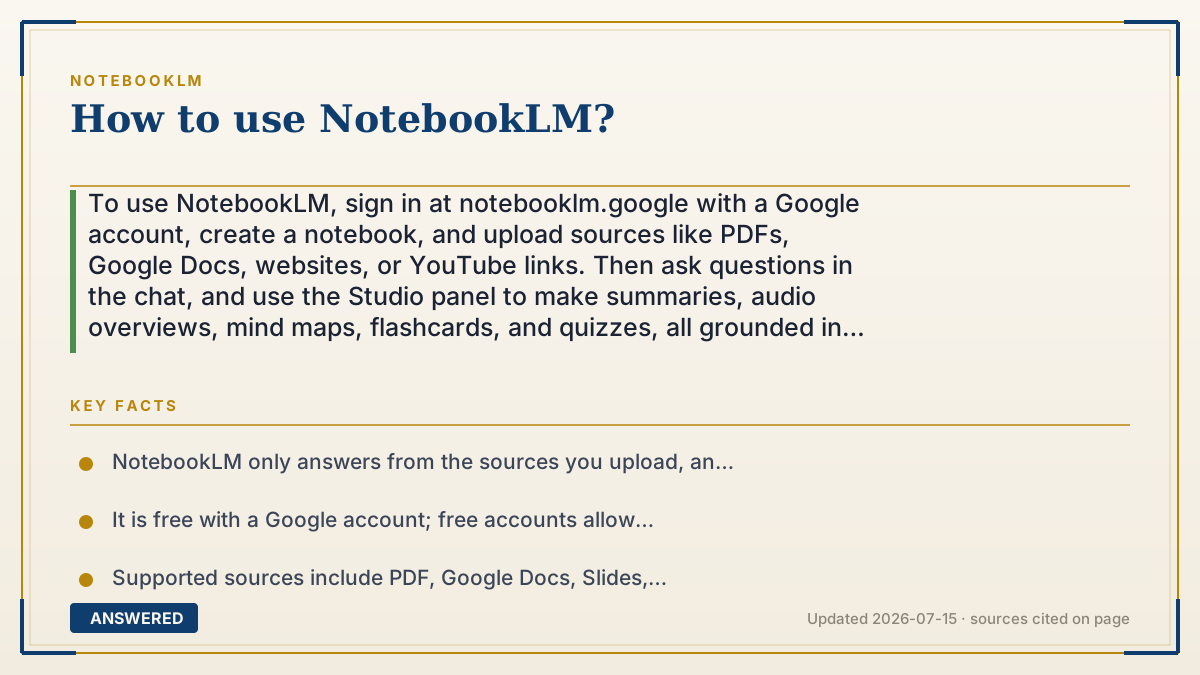
To use NotebookLM, sign in at notebooklm.google with a Google account, create a notebook, and upload sources like PDFs, Google Docs, websites, or YouTube links. Then ask questions in the chat, and use the Studio panel to make summaries, audio overviews, mind maps, flashcards, and quizzes, all grounded in your sources with citations.
Why — the first-principles explanation
NotebookLM works differently from a normal chatbot. A chatbot answers from everything it read during training, so it can wander or make things up. NotebookLM is grounded: it only uses the sources you upload, and it retrieves exact passages from them to build each answer. This is why it stays accurate to your material and cites its work.
That design changes how you should use it. The quality of your output depends almost entirely on the quality of your inputs. Good, relevant sources produce sharp summaries and reliable answers; a pile of unrelated documents produces mush. So the core workflow is: gather the right sources, then let the tool question, summarize, and reshape them.
Everything on the right-hand Studio panel is just a different way to repackage those same sources, into an audio podcast, a video overview, a mind map, flashcards, a quiz, or a written report. You are not teaching the AI new facts; you are choosing which lens to view your own material through.
An example that makes it click
Think of NotebookLM as a smart binder. You slot in your class handouts, a research paper, and a YouTube lecture. Now the binder can talk: ask it 'summarize chapter 2,' and it flips to the right pages and answers, showing you exactly where it found each point.
Press a button and the same binder reads itself aloud as a podcast, or turns into flashcards for tonight's study session, all from the pages you put in.
How to do it
- Go to notebooklm.google and sign in with a Google account.
- Click Create new to start a notebook.
- Click Add source and upload PDFs, Google Docs, Slides, websites, YouTube links, audio, or pasted text.
- Type questions in the chat box to explore your sources; click citations to verify answers.
- Open the Studio panel to generate an Audio Overview, Video Overview, mind map, flashcards, a quiz, or a report.
- Save useful answers as notes, and add more sources anytime to refine results.
Key facts
- NotebookLM only answers from the sources you upload, and provides inline citations.
- It is free with a Google account; free accounts allow 100 notebooks and 50 sources per notebook.
- Supported sources include PDF, Google Docs, Slides, websites, YouTube URLs, audio, and pasted text.
- The Studio panel produces audio, video, mind maps, flashcards, quizzes, and reports.
- Each source can hold up to 500,000 words or 200MB.
Open the official product and verify the active account, workspace and data settings before you begin.
▶ The 60-second explainer (script)
Here's how to use NotebookLM from scratch. Go to notebooklm.google and sign in with your Google account, it's free. Click Create new to start a notebook. The most important step is next: add your sources. You can upload PDFs, Google Docs, websites, even YouTube links or audio. This matters because NotebookLM only answers from the sources you give it, which is why it stays accurate and cites exactly where each fact came from. Once your sources are in, just type questions in the chat, like 'summarize the key arguments' or 'what does this say about costs?' Click any citation to jump back and verify. Then explore the Studio panel on the right. With one click you can turn your sources into a podcast-style audio overview, a video, a mind map, flashcards, or a quiz. The trick to great results is simple: good sources in, great answers out.
What authoritative sources say
People also ask
Do I need to install anything?
No. NotebookLM runs in your web browser at notebooklm.google, and there is also a mobile app. Just sign in with a Google account.
What should I upload?
Upload the specific documents you want to study or research, since answers come only from your sources.
Can it summarize everything at once?
Yes. Use the chat or the Studio panel to summarize across all sources in a notebook, with citations.
Is my first notebook free?
Yes. Free accounts include up to 100 notebooks with 50 sources each at no cost.