How to delete my AI chat history on Snapchat?
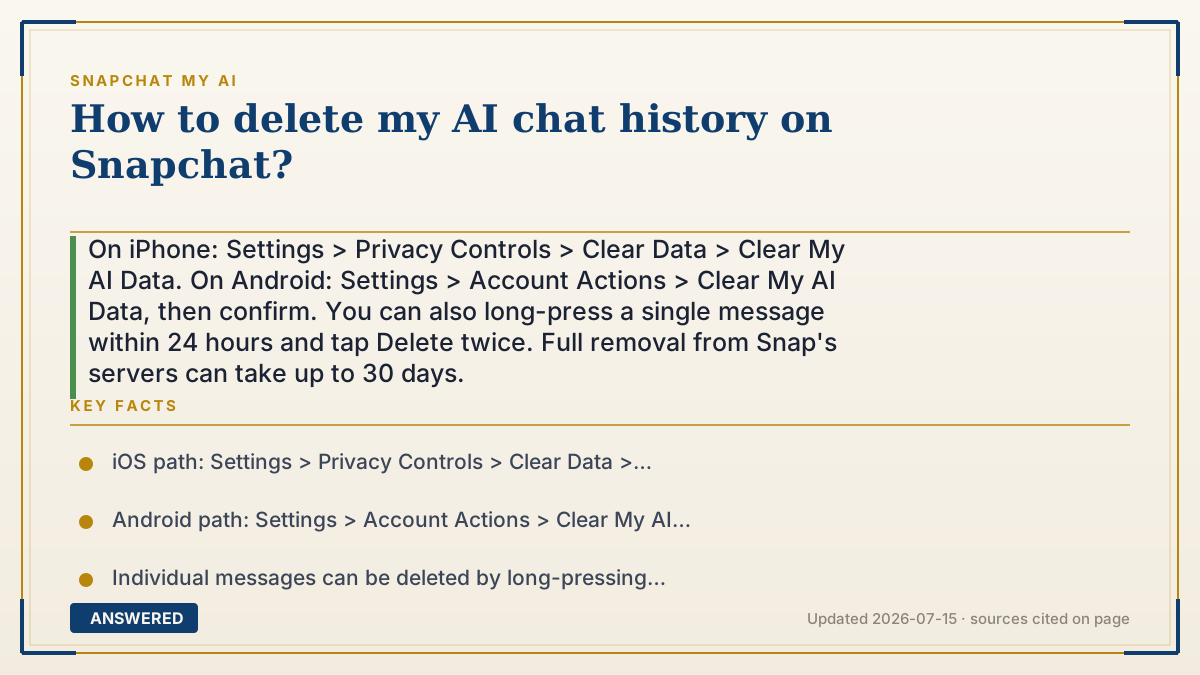
On iPhone: Settings > Privacy Controls > Clear Data > Clear My AI Data. On Android: Settings > Account Actions > Clear My AI Data, then confirm. You can also long-press a single message within 24 hours and tap Delete twice. Full removal from Snap's servers can take up to 30 days.
Why — the first-principles explanation
Deleting My AI history matters because, unlike disappearing Snaps, My AI content is retained until you delete it. So there's an actual record to remove, and Snap gives a dedicated control for it: 'Clear My AI Data.' This wipes your saved conversation history rather than just hiding the chat.
There are two levels of deletion. For a full wipe, use the Clear My AI Data control in Settings — the exact path differs slightly by platform (Privacy Controls on iOS, Account Actions on Android). For a lighter touch, you can long-press an individual message within 24 hours and delete it, which removes just that line.
Two caveats keep expectations honest. First, deletion isn't instant: Snap says it can take up to 30 days to remove the relevant data from its servers. Second, clearing your 1:1 data doesn't touch My AI messages inside group chats — those aren't part of your private history and stay put. So 'delete my history' means your personal thread, cleared on request, with a processing window.
An example that makes it click
Your My AI chat is like a saved chat log on a computer, not a whiteboard that erases itself. To clear it, you open a settings menu and hit 'delete data' — the equivalent of dragging the whole log to the trash.
And like emptying a computer's trash, it isn't truly gone the instant you click. Snapchat needs up to 30 days to clear it off their servers. If you only want to erase one line instead of the whole log, you can hold your finger on that single message and delete it within a day.
How to do it
- iOS: Tap your Profile icon, open Settings (gear).
- Go to Privacy Controls > Clear Data > tap 'Clear My AI Data' and confirm.
- Android: Tap your Profile icon, open Settings, go to Account Actions.
- Tap 'Clear My AI Data' and confirm.
- To delete a single message, long-press it within 24 hours and tap Delete twice. Allow up to 30 days for full server removal.
Key facts
- iOS path: Settings > Privacy Controls > Clear Data > Clear My AI Data.
- Android path: Settings > Account Actions > Clear My AI Data.
- Individual messages can be deleted by long-pressing within 24 hours (tap Delete twice).
- Full deletion from Snap's servers can take up to 30 days.
- Clearing 1:1 data does not remove My AI messages posted in group chats.
▶ The 60-second explainer (script)
Want to delete your My AI chat history on Snapchat? Here's exactly how. Because My AI messages are saved until you delete them, there's a dedicated control for wiping them. On an iPhone, tap your profile icon, open Settings, go to Privacy Controls, then Clear Data, and tap Clear My AI Data. On Android, it's a slightly different path: Settings, then Account Actions, then Clear My AI Data. Confirm, and your saved conversation history is wiped. If you only want to remove a single message instead of everything, press and hold on that message within 24 hours and tap Delete twice. Two important notes. First, deletion isn't instant — Snapchat says it can take up to 30 days to fully remove the data from their servers. Second, this clears your private one-on-one history; it does not remove My AI messages that appear in group chats. So for a clean slate, use Clear My AI Data and give it a little time.
What authoritative sources say
People also ask
Where is Clear My AI Data on iPhone?
Settings > Privacy Controls > Clear Data > Clear My AI Data.
How long until my data is really gone?
Snap says it can take up to 30 days to remove the relevant My AI data from its servers.
Does this delete My AI messages in group chats?
No. Clearing your data affects your 1:1 conversation. My AI messages in group chats aren't removed by it.
The same question, asked other ways
- How to clear my AI data on Snapchat?