How to get started with Cursor AI?
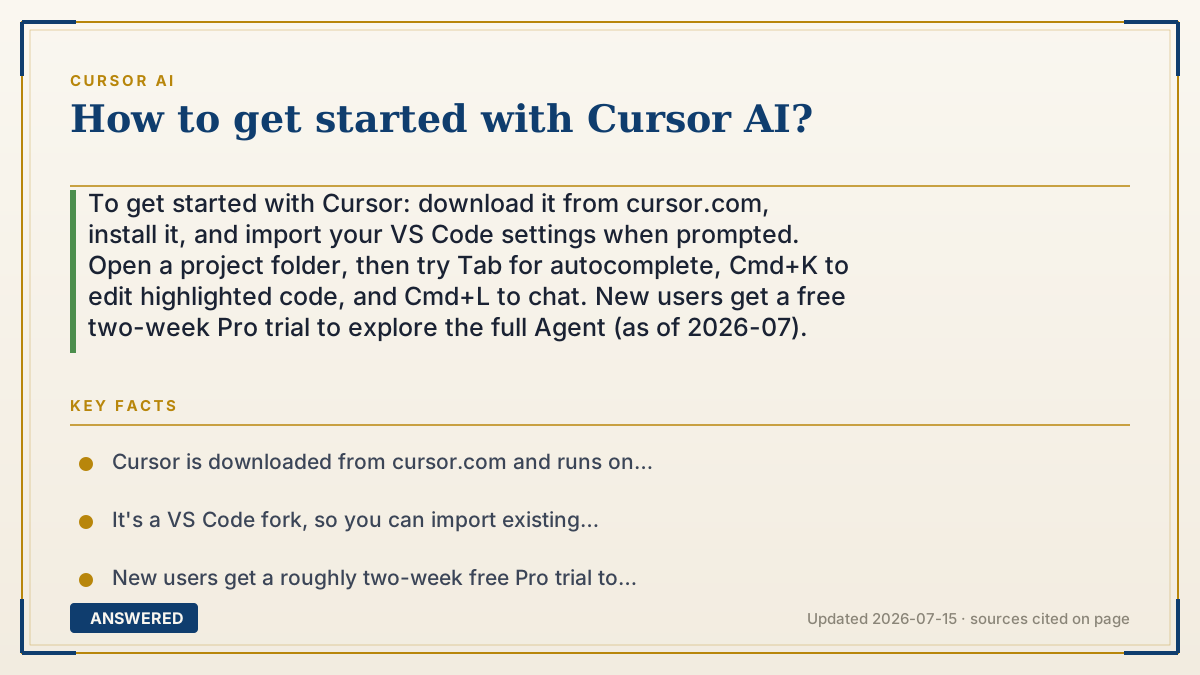
To get started with Cursor: download it from cursor.com, install it, and import your VS Code settings when prompted. Open a project folder, then try Tab for autocomplete, Cmd+K to edit highlighted code, and Cmd+L to chat. New users get a free two-week Pro trial to explore the full Agent (as of 2026-07).
Why — the first-principles explanation
Getting started is easy because Cursor is a fork of VS Code. If you have ever used VS Code, the interface, shortcuts, and extensions are already familiar, so there is almost no learning curve for the editor itself. The only new thing to learn is the AI layer.
The smart way to onboard is to add AI habits one at a time rather than jumping straight to the fully autonomous agent. Start with Tab autocomplete, because it requires zero effort, you just keep typing and press Tab. Then learn Cmd+K for editing code you have selected, then Chat for asking questions. Save the full Agent for last, once you trust how the AI behaves.
This order matters because AI coding tools reward you for building judgment about when to trust them. If you hand a beginner the autonomous agent on day one, they may accept large changes they cannot evaluate. Building up gradually keeps you in control while your intuition grows.
The free two-week Pro trial is the ideal sandbox for this. You get the full feature set without paying, so you can practice on a real project and decide whether the paid plan earns its keep before any money changes hands.
An example that makes it click
Learning Cursor is like learning to drive a car with cruise control and self-parking. You don't start by flipping on full self-driving on the highway. First you just drive normally (Tab autocomplete). Then you try cruise control on a straight road (Cmd+K edits). Then you let it help park (Chat). Only once you trust the car do you let it handle a whole trip on its own (Agent). Each step, you stay in control and learn what the car does well, so by the end you know exactly when to let go of the wheel.
How to do it
- Go to cursor.com and download the installer for your operating system.
- Install and open Cursor, then sign in or create an account to start the free Pro trial.
- When prompted, import your VS Code extensions, themes, and keybindings in one click.
- Open your project with File > Open Folder so Cursor can index the codebase.
- Practice Tab autocomplete by typing code and pressing Tab to accept suggestions.
- Select code and press Cmd+K (Ctrl+K) to make an inline edit in plain English.
- Press Cmd+L (Ctrl+L) to open Chat, and use @ to attach specific files for context.
- Once comfortable, switch Chat to Agent mode to complete a full multi-file task.
Key facts
- Cursor is downloaded from cursor.com and runs on Windows, macOS, and Linux.
- It's a VS Code fork, so you can import existing extensions and settings in one click.
- New users get a roughly two-week free Pro trial to explore all features.
- The recommended learning order is Tab, then Cmd+K, then Chat, then Agent.
- Opening a project folder lets Cursor index the codebase for context-aware help.
- The @ symbol attaches files, folders, docs, or the web to any prompt.
Open the official product and verify the active account, workspace and data settings before you begin.
▶ The 60-second explainer (script)
Want to get started with Cursor? It's quick, because Cursor is built on VS Code, so it'll feel familiar right away. Step one: go to cursor dot com and download it for your system. Install it, sign in, and you'll start a free two-week Pro trial. When it asks, import your VS Code extensions and settings in one click. Now open your project folder, this lets Cursor read and index your whole codebase. Here's the smart way to learn: add the AI habits one at a time. Start with Tab, just type and press Tab to accept autocomplete. Next, highlight some code and press Command K to edit it in plain English. Then press Command L to open Chat and ask questions, using the at symbol to point at specific files. Only once you trust it, switch to Agent mode to let it handle a whole task across many files. Build up gradually, and you'll stay in control the whole way.
What authoritative sources say
People also ask
Do I need to pay to get started?
No. There's a free Hobby plan and a free two-week Pro trial for new users.
Can I keep my VS Code extensions?
Yes. On first launch Cursor offers to import your VS Code extensions, themes, and keybindings.
What should I try first?
Start with Tab autocomplete, then move to Cmd+K edits, Chat, and finally the autonomous Agent.
Does Cursor work on my operating system?
Yes. Cursor has installers for Windows, macOS, and Linux.