How to use Cursor AI?
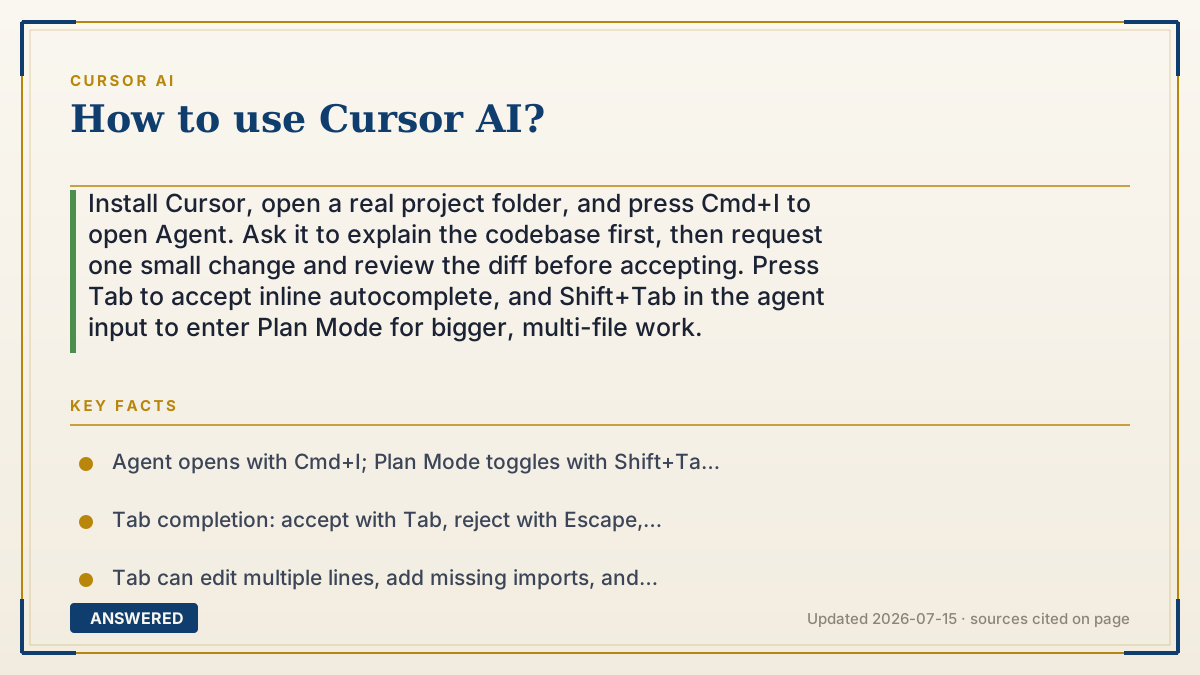
Install Cursor, open a real project folder, and press Cmd+I to open Agent. Ask it to explain the codebase first, then request one small change and review the diff before accepting. Press Tab to accept inline autocomplete, and Shift+Tab in the agent input to enter Plan Mode for bigger, multi-file work.
Why — the first-principles explanation
Most "how to use Cursor" advice is a shortcut list. The shortcuts take ten minutes to learn. What actually separates people who get value from people who bounce off is understanding what the AI can and can't see, because every good habit in Cursor follows from that.
The model has no memory of your project and no eyes. Each time you ask for something, a bundle of text — your prompt, some files, some search results — gets assembled and sent to a model that reads it fresh. Everything you experience as "Cursor is smart" is really "the right files made it into that bundle," and everything you experience as "Cursor is dumb" is usually "they didn't." This is why vague requests fail. "Fix the login bug" gives the assembler nothing to find files with. "Users with expired sessions get a 500 on /login instead of a redirect — see auth/session.py" names the symptom and the neighborhood, and suddenly the same model looks brilliant. You're not talking to a coworker who knows the project. You're writing the brief for a very good contractor's first day.
That also explains the three tools, which are the same idea at three speeds. Tab is prediction with tiny context — it reads your recent edits, nearby code, and linter errors to guess your next keystrokes, then after you accept, predicts where you'll edit next and jumps you there. Agent (Cmd+I) is the wide one: it searches the repo, reads files, runs terminal commands, and edits across many files. Plan Mode (Shift+Tab) is the deliberate one — it researches, asks clarifying questions, writes a plan, and waits for approval before touching code. Plan Mode exists precisely because on big tasks, a wrong assumption made in second one costs you twenty minutes of confidently wrong edits.
Which brings up the habit that matters most: review the diff. The failure mode of AI coding isn't code that crashes — that's easy, you'll see it. It's code that runs and quietly does the wrong thing. The AI is fast at producing changes and has no stake in whether they're correct. You are the only part of the loop that cares. So the loop that works is small task → watch the diff → run the tests, type checker, and linter your project already uses → then go again. People who ship huge unreviewed agent changes and people who conclude "AI coding doesn't work" are frequently the same people.
An example that makes it click
Think about the difference between texting a friend "the thing is broken, can you look at it?" versus "the kitchen tap drips about once a second, only when the hot side is on — it's the one under the window."
Same friend. Same skills. One text gets you a confused reply; the other gets you a fixed tap. Cursor works exactly like this, and for the same reason: your description is the only way the helper knows where to look. The bonus is that Cursor can walk over and check for itself — so the winning move is to first say "go look at the kitchen and tell me what you see," then ask for the fix. That's the whole method: orient it, then aim it.
How to do it
- Install Cursor from cursor.com/downloads — macOS 12+ (.dmg), Windows 10+ (.exe), or Linux via the apt/dnf repos (preferred, they give you auto-updates and CLI tools) or a portable AppImage. Open the app and sign in.
- Import your VS Code setup if you have one: press Cmd+Shift+J (Mac) or Ctrl+Shift+J (Windows/Linux), go to General > Account, and click Import under VS Code Import. This brings over extensions, themes, settings, and keybindings.
- Open a real project folder — not an empty one. Cursor's advantage is reading an existing codebase, so it has little to work with otherwise.
- Orient it before you aim it. Press Cmd+I to open Agent and ask: 'Explain this codebase. Point me to the main entry points, key modules, and anything I should read before making changes.'
- Make one small, low-risk change first. Try: 'Suggest three small, safe improvements in this codebase. Explain the tradeoffs and wait for me to choose one.' Good starters are copy fixes or small UI issues.
- Review the diff before accepting. Cursor's diff view shows exactly what the agent changed — read it, then ask Cursor to run the checks your project already uses: tests, type checker, linter, or a local build.
- Use Tab as you type: grayed-out text ahead of your cursor is a suggestion. Press Tab to accept, Escape to reject, Cmd+Right (Mac) or Ctrl+Right (Windows/Linux) to accept word-by-word. Press Tab again after accepting to jump to the next predicted edit location.
- For anything spanning multiple files or needing research, press Shift+Tab in the agent input to toggle Plan Mode. It researches, asks clarifying questions, writes an implementation plan, and waits for your approval before building.
- Write prompts like a brief, not a wish: name the symptom, the expected behavior, and the file or area to start in. Point at specific files whenever you know them.
- Turn Tab off when it's noisy: click the Tab indicator in the bottom-right corner to snooze it, disable it globally, or disable it for specific file types like Markdown or JSON.
Key facts
- Agent opens with Cmd+I; Plan Mode toggles with Shift+Tab in the agent input, where Cursor researches the codebase, asks clarifying questions, creates an implementation plan, and waits for approval before building.
- Tab completion: accept with Tab, reject with Escape, accept word-by-word with Cmd+Right (Mac) or Ctrl+Right (Windows/Linux); pressing Tab again after accepting jumps to the next predicted edit location.
- Tab can edit multiple lines, add missing imports, and predict cross-file edits — when a jump to another file is available, a portal window appears at the bottom of the editor.
- System requirements as of 2026-07: macOS 12 (Monterey) or later, Windows 10 or later, Linux via Debian/Ubuntu apt repo, RHEL/Fedora dnf repo, or AppImage; Cursor recommends apt/yum over AppImage for desktop icons, auto-updates, and CLI tools.
- VS Code import is one click: Cmd+Shift+J (Mac) or Ctrl+Shift+J (Windows/Linux) > General > Account > VS Code Import > Import, bringing over extensions, themes, settings, and keybindings.
- Cursor shares VS Code's default keyboard shortcuts, and the Tab accept shortcut can be remapped by searching 'Accept Cursor Tab Suggestions' in Keyboard Shortcuts settings.
Open the official product and verify the active account, workspace and data settings before you begin.
▶ The 60-second explainer (script)
How do you use Cursor? Here's the ten-second version: install it, open a real project, press Command-I to open Agent, and ask it to explain your codebase before you ask it to change anything. But let me tell you the part that actually matters. The model has no memory of your project and no eyes. Every time you ask for something, a bundle of text gets assembled and sent to a model reading it fresh. When Cursor seems smart, it's because the right files made it into that bundle. When it seems dumb, they didn't. That's why 'fix the login bug' fails and 'users with expired sessions get a 500 on slash login instead of a redirect, see auth slash session dot py' works. Same model. Better brief. So: three tools, three speeds. Tab is autocomplete — hit Tab to accept, and hit Tab again to jump to the next spot you need to edit. Command-I is Agent, which searches, reads, runs commands, and edits across files. And Shift-Tab is Plan Mode, where it researches and writes a plan and waits for your approval — use that for anything big. Last thing, and it's the one people skip. Read the diff. AI code that crashes is easy to catch. AI code that runs and quietly does the wrong thing is not. Small task, read the diff, run your tests, repeat.
What authoritative sources say
People also ask
Do I need to know how to code to use Cursor?
You can produce working code without much experience, but the review step is where knowledge pays. Cursor writes changes fast and has no stake in whether they're right — if you can't read the diff, you can't catch the quiet mistakes.
What's the difference between Agent and Plan Mode?
Agent starts working immediately. Plan Mode (Shift+Tab) researches your codebase, asks clarifying questions, writes an implementation plan, and waits for your approval first. Use Plan Mode when a task spans multiple files.
Why does Cursor keep giving me irrelevant code?
Usually a context problem, not an intelligence problem. Name the specific files, describe the actual symptom and the expected behavior, and ask it to explain the relevant code before changing it.
How do I stop Tab from constantly suggesting things?
Click the Tab status indicator in the bottom-right corner of Cursor. You can snooze it for a set time, disable it globally, or disable it just for certain file types like Markdown or JSON.
Should I let the agent make big changes on its own?
Not until you trust it on a given codebase. Small tasks with a reviewed diff and a test run after each one beat one giant unreviewed change — mistakes stay findable while they're still small.