How to change audio overview language in NotebookLM?
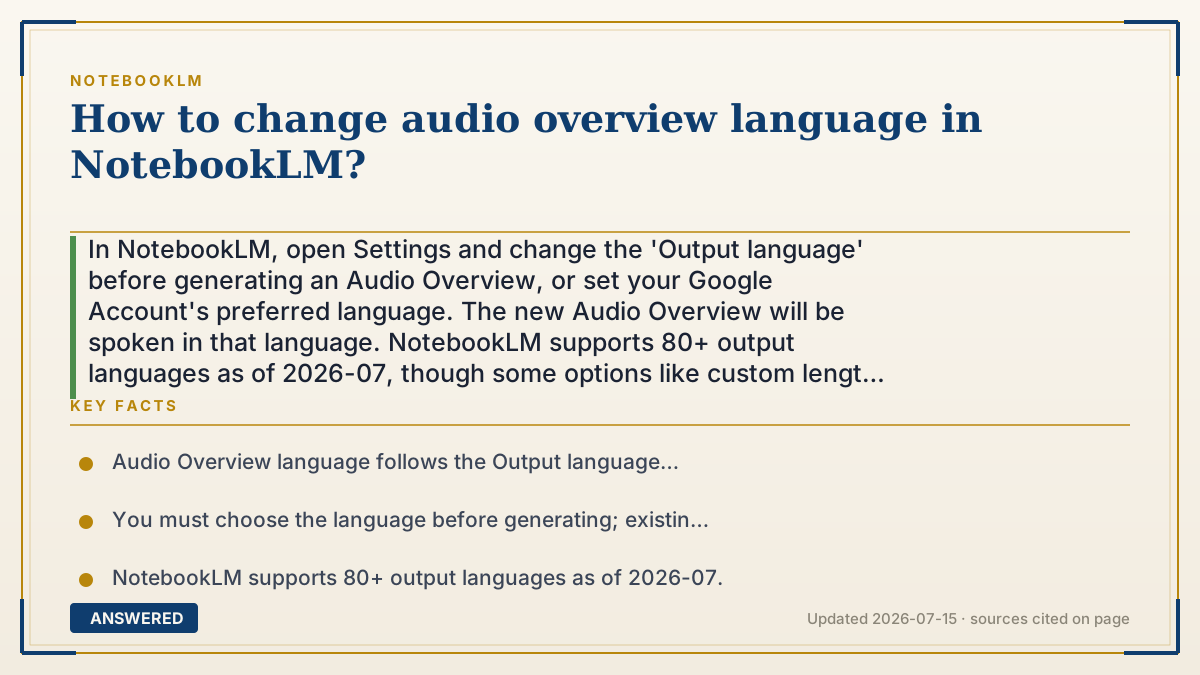
In NotebookLM, open Settings and change the 'Output language' before generating an Audio Overview, or set your Google Account's preferred language. The new Audio Overview will be spoken in that language. NotebookLM supports 80+ output languages as of 2026-07, though some options like custom length may be English-only.
Why — the first-principles explanation
An Audio Overview's language is set at the scripting stage, before the voices are generated. NotebookLM decides what language to write the two-host script in based on an output language setting, then narrates it with voices for that language. So changing the language is really about telling it which language to write and speak in.
There are two ways to control this. NotebookLM reads your Google Account's preferred language as the default, and it also offers an in-app output language setting that you can switch independently, so you can, for example, keep your interface in English but generate a Spanish overview.
Because language is chosen at generation time, you must set it before you hit Generate; an already-made overview won't switch languages, you generate a new one. Note that some newer controls (like the Longer/Shorter length option and Interactive mode) may be limited to English, so a few features can lag in other languages.
An example that makes it click
Think of ordering a translation of a speech before it's given. You tell the speechwriter, 'Write and deliver this in French,' and they produce the whole talk in French from the start.
NotebookLM works the same way: pick your language first, then press Generate, and the two hosts talk entirely in that language. If you already made an English one, you don't translate it, you just order a fresh French version.
How to do it
- Open NotebookLM and go to Settings (or your account language settings).
- Find the Output language option and select your desired language.
- Alternatively, set your Google Account's preferred language, which NotebookLM uses by default.
- Return to your notebook and open the Studio panel.
- Click Audio Overview (and Customize if you want a format or focus).
- Click Generate; the new overview will be spoken in the chosen language.
Key facts
- Audio Overview language follows the Output language setting or your Google Account's preferred language.
- You must choose the language before generating; existing overviews won't switch languages.
- NotebookLM supports 80+ output languages as of 2026-07.
- Some features like custom length and Interactive mode may be English-only.
- Changing output language lets you keep your interface in one language and generate audio in another.
Open the official product site and confirm the current access, plans and terms.
▶ The 60-second explainer (script)
Want your NotebookLM Audio Overview in a different language? Here's how. The key thing to know is that the language is chosen before the audio is made, not after. NotebookLM writes and speaks the two-host script in whatever your output language is set to. So first, go into Settings and look for the Output language option, then pick the language you want, say Spanish or Mandarin. NotebookLM supports over eighty languages. You can also just set your Google Account's preferred language, which it uses by default. Then go back to your notebook, open the Studio panel, click Audio Overview, and hit Generate. The hosts will now speak entirely in that language. One important tip: you have to set the language before generating. An overview you already made won't switch, you just generate a fresh one. And note a few newer features, like the custom length setting, may still be English only for now.
What authoritative sources say
People also ask
Can I change the language of an existing audio overview?
No. Set the output language first, then generate a new overview; existing ones won't switch languages.
How many languages are supported?
More than 80 output languages as of 2026-07, including English, Spanish, French, and Mandarin.
Why is the length option missing in my language?
Some newer controls, like Shorter/Longer length and Interactive mode, may currently be English-only.
Does changing output language change the whole app?
Not necessarily. You can set the output language for generation separately from your interface language.