How to generate audio overview in NotebookLM?
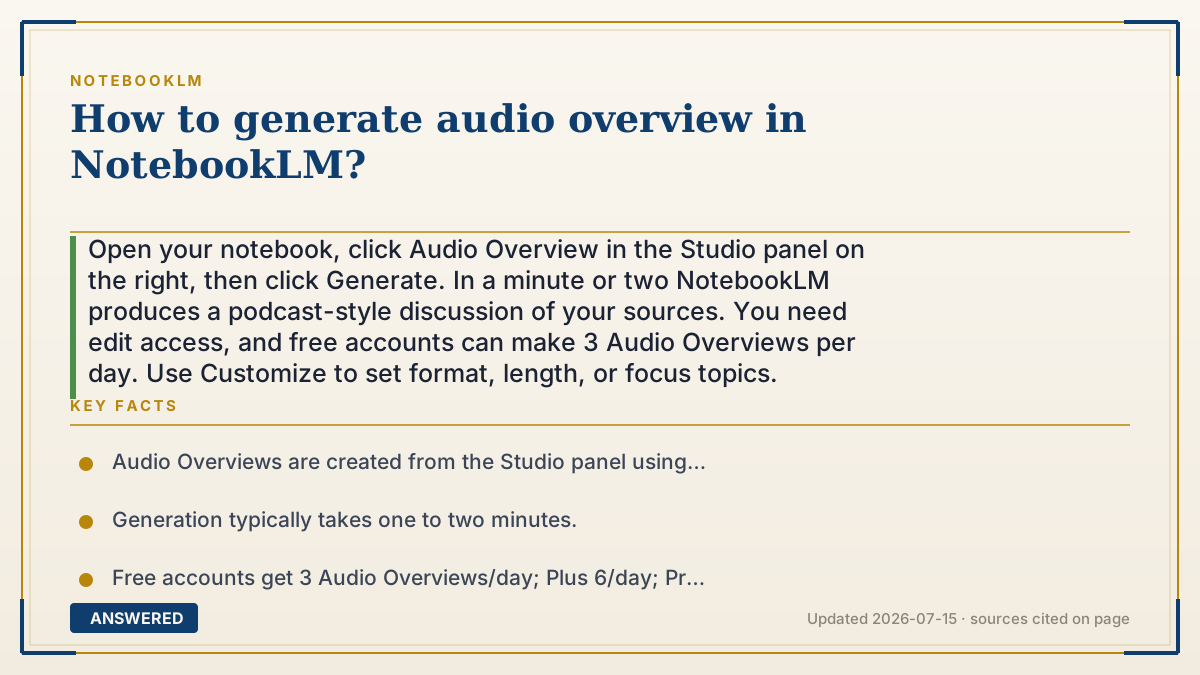
Open your notebook, click Audio Overview in the Studio panel on the right, then click Generate. In a minute or two NotebookLM produces a podcast-style discussion of your sources. You need edit access, and free accounts can make 3 Audio Overviews per day. Use Customize to set format, length, or focus topics.
Why — the first-principles explanation
An Audio Overview is generated in two stages. First, Google's Gemini model reads all your sources and writes a script, a natural two-host dialogue that hits the key points. Second, a text-to-speech engine narrates that script in two realistic voices. You only press one button; both stages happen on Google's servers, which is why it takes a minute or two rather than being instant.
The 'Customize' box matters because it is injected into the scripting stage. When you tell it to focus on chapter 3 or explain things for a beginner, the model weights the script toward that instruction. The format choices (Deep Dive, Brief, Critique, Debate) are really different script templates, and the length setting nudges how much detail the script includes.
Because generation consumes real compute, Google caps it per day by plan: 3 per day on free, 6 on Plus, 20 on Pro. You also need edit access to a notebook, since generating writes a new item into the shared Studio panel.
An example that makes it click
It's like ordering a custom smoothie. You pick your ingredients (your sources), tell the barista any preferences ('extra focus on the budget section, keep it short'), and hit order. A minute later a finished drink appears, blended exactly to your request. You didn't operate the blender, you just chose what went in and pressed a button.
How to do it
- Go to notebooklm.google and open a notebook that already has sources uploaded.
- Find the Studio panel on the right side of the screen.
- Click Audio Overview.
- Optional: click Customize to choose a format (Deep Dive, Brief, Critique, or Debate), set length (Shorter, Default, Longer), or type a focus prompt.
- Click Generate and wait one to two minutes.
- Press play to listen, or use the three-dot menu to share or download the audio.
Key facts
- Audio Overviews are created from the Studio panel using the Audio Overview button.
- Generation typically takes one to two minutes.
- Free accounts get 3 Audio Overviews/day; Plus 6/day; Pro 20/day.
- You need edit access to a notebook to generate or delete an Audio Overview.
- Customize lets you set format, length, and a focus prompt before generating.
Open the official product site and confirm the current access, plans and terms.
▶ The 60-second explainer (script)
Here's how to generate an Audio Overview in NotebookLM in under a minute of your time. First, open a notebook that already has sources in it. On the right side, you'll see the Studio panel. Click the button that says Audio Overview. If you want control, click Customize first. You can pick a format like a quick Brief or a deeper Debate, set the length to shorter or longer, and even type a prompt telling the hosts to focus on a specific topic. Then just click Generate. Behind the scenes, Google's Gemini writes a two-host script and a voice engine narrates it. About a minute or two later, your podcast-style overview is ready to play, share, or download. Two things to remember: you need edit access to the notebook, and free accounts can make three Audio Overviews per day, while paid Pro plans allow twenty.
What authoritative sources say
People also ask
Why can't I see the Audio Overview button?
You need edit access to the notebook and at least one uploaded source. Viewers of a shared notebook cannot generate one.
How long does generation take?
Usually one to two minutes, depending on how much source material you uploaded.
How many can I make per day?
Three per day on the free plan, six on Plus, and twenty on Pro.
Can I focus the audio on one topic?
Yes. Click Customize and type a prompt telling the hosts which topic or section to focus on.