How to delete Janitor AI account?
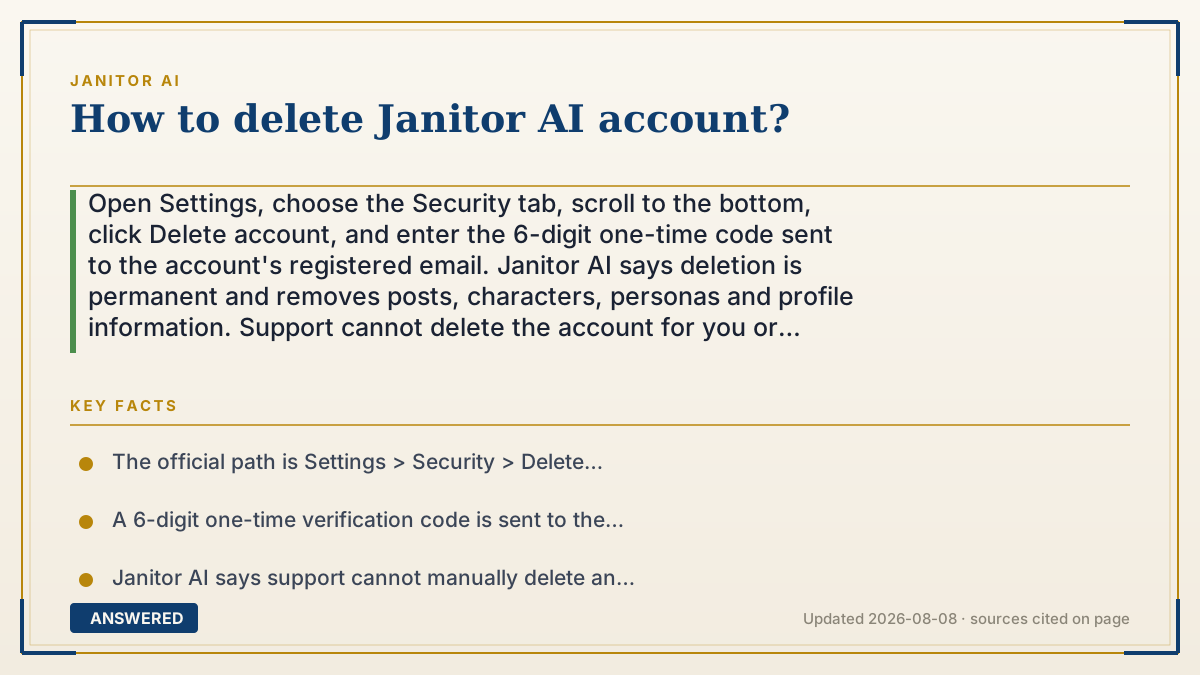
Open Settings, choose the Security tab, scroll to the bottom, click Delete account, and enter the 6-digit one-time code sent to the account's registered email. Janitor AI says deletion is permanent and removes posts, characters, personas and profile information. Support cannot delete the account for you or bypass lost email access. Verified 2026-08-08.
Before and during Janitor AI account deletion
| Check | Official rule | What to do |
|---|---|---|
| Deletion path | Settings > Security > Delete account | Follow the on-screen instructions |
| Identity check | 6-digit OTP goes to the registered email | Confirm you can receive that email first |
| Support fallback | Support cannot manually delete the account | Do not rely on an email ticket as a bypass |
| Data outcome | Permanent; listed account data cannot be recovered | Copy anything you are allowed and need to retain before confirming |
Why — the first-principles explanation
Janitor AI's deletion flow is self-service and email-verified. The delete control lives under Settings > Security. After you start the process, Janitor sends a fresh six-digit one-time password to the email address registered to the account. The account is deleted only after that code and the remaining on-screen confirmation steps are completed.
The email code is also the hard boundary. Janitor's official help article says Customer Support cannot manually delete accounts and cannot work around a mailbox you no longer control. That directly contradicts older third-party advice telling users to email support as an alternate deletion route.
Deletion is permanent. Janitor specifically lists posts, characters, personas and profile information as data that will be removed and cannot be recovered. The official article does not promise a grace period or restoration path, so treat the final confirmation as irreversible.
Account deletion and subscription cancellation are separate actions. If you have JanitorAI+ through web, iOS or Android, follow the official cancellation path for that billing channel before deleting. Do not assume deleting the profile automatically cancels an App Store, Google Play or Stripe subscription.
An example that makes it click
Think of the registered email as the only key to a document shredder. Settings opens the door, but the six-digit code proves you still hold the key before the shredder runs. Support is not a spare key. Once the deletion is confirmed, the official policy says the listed account data cannot be recovered.
How to do it
- Before deleting, save any characters or other material you are allowed and need to retain; Janitor documents no recovery after deletion.
- If you pay for JanitorAI+, cancel it through the same billing channel you used: web billing, Apple App Store or Google Play.
- Confirm you can receive messages at the email address registered to the Janitor AI account.
- Log in to Janitor AI and open Settings.
- Open the Security tab, scroll to the bottom and click Delete account.
- Enter the 6-digit one-time verification code emailed to the registered address.
- Follow the remaining on-screen instructions only after accepting that the listed account data cannot be recovered.
Key facts
- The official path is Settings > Security > Delete account > on-screen instructions.
- A 6-digit one-time verification code is sent to the account's registered email and is required to complete deletion.
- Janitor AI says support cannot manually delete an account or bypass inaccessible registered email.
- Deletion permanently removes posts, characters, personas and profile information and cannot be recovered.
- Subscription cancellation is channel-specific and should be handled separately before account deletion.
Protect the account and data before deletion
Review privacy, age and account-safety questions before making an irreversible deletion decision.
▶ The 60-second explainer (script)
To delete a Janitor AI account, open Settings, choose Security, scroll to the bottom and click Delete account. Janitor sends a six-digit one-time code to the registered email. Enter it and follow the remaining prompts. Check that mailbox before you start, because Janitor's official help article says support cannot manually delete the account or bypass lost email access. Deletion is permanent and removes posts, characters, personas and profile information with no documented recovery. If you pay for JanitorAI+, cancel through the billing channel you used before deleting; account deletion and subscription cancellation are separate actions.
What authoritative sources say
People also ask
Can I undo account deletion?
No recovery process is documented. Janitor says the listed account data is permanently removed and cannot be recovered.
What if I lost access to the registered email?
You cannot complete the required OTP step. Janitor says support cannot manually delete the account or work around inaccessible email.
Can support delete my account for me?
No. Janitor's official help article says account deletion can only be completed by the user through the Settings flow.
Does deleting the account cancel JanitorAI+?
Do not assume it does. Cancel through the billing channel you used — web, App Store or Google Play — before deleting the account.