How to disable Copilot in Windows 11?
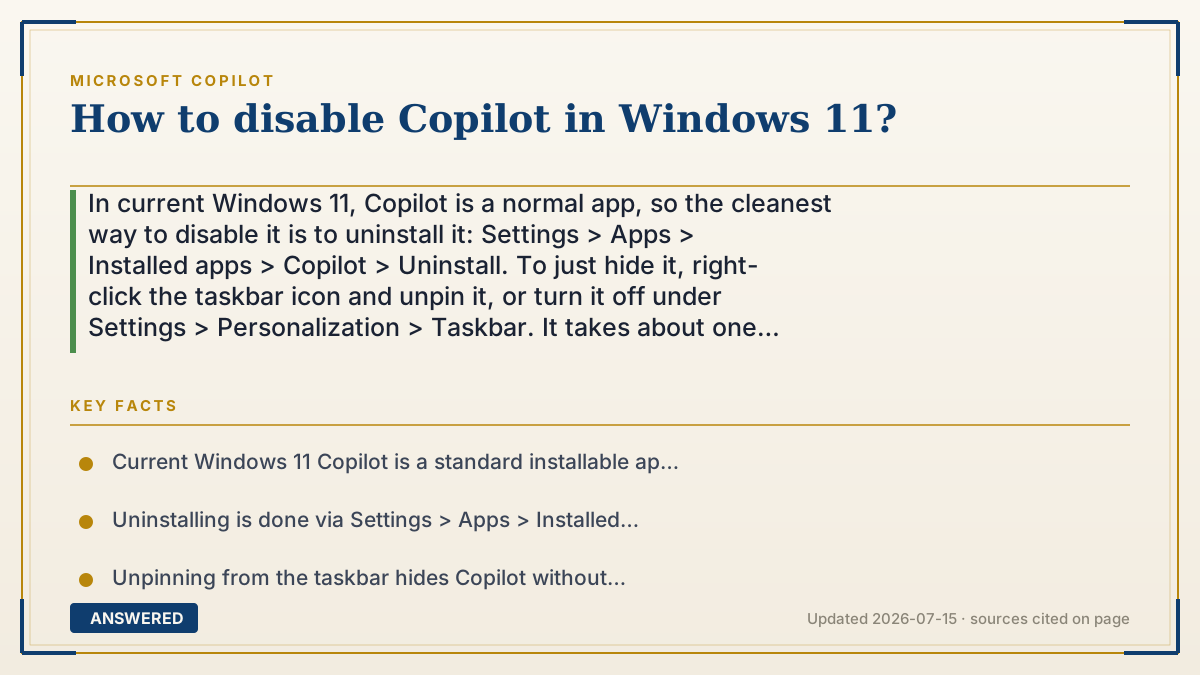
In current Windows 11, Copilot is a normal app, so the cleanest way to disable it is to uninstall it: Settings > Apps > Installed apps > Copilot > Uninstall. To just hide it, right-click the taskbar icon and unpin it, or turn it off under Settings > Personalization > Taskbar. It takes about one minute.
Why — the first-principles explanation
Early Windows 11 builds wired Copilot deep into the system as an always-present sidebar, so disabling it required Group Policy or registry edits. Microsoft later rebuilt Copilot as a standard installed app (a Progressive Web App). This matters because an app, unlike a baked-in system feature, can simply be uninstalled or unpinned like any other program.
So the modern approach is not a special "kill switch" but ordinary app management. Uninstalling removes the program entirely and frees the taskbar space. Unpinning leaves the app installed but hides the icon, which is enough if you just do not want to see it. Neither breaks Windows, because Copilot is no longer a core dependency of the operating system.
For managed or business PCs, administrators still have stronger tools. Group Policy and Microsoft Intune offer a setting to turn off Copilot across many machines at once, which is how IT departments enforce it fleet-wide. Home users rarely need this; uninstalling the app achieves the same result for one PC.
The reason Microsoft made it an app is partly regulatory and partly practical: users and regulators pushed back on bundled features that could not be removed. Treating Copilot as removable software gives you a clean, reversible off switch you can undo anytime by reinstalling from the Microsoft Store.
An example that makes it click
Think of the old Copilot like a built-in car radio welded to the dashboard: annoying to remove and you needed a mechanic. The new Copilot is like a phone mount clipped to the vent, you just pop it off with two fingers. Right-click, unpin, done.
If you want it truly gone rather than just off the dash, you toss the mount in a drawer (uninstall). And if you miss it next month, you clip it right back on by reinstalling from the Store. Nothing about the car stops working either way.
How to do it
- Open Settings by pressing Windows key + I.
- Go to Apps, then Installed apps.
- Scroll to or search for 'Copilot' in the app list.
- Click the three-dot menu next to Copilot and choose Uninstall, then confirm.
- To only hide it instead, right-click the Copilot icon on the taskbar and select Unpin, or go to Settings > Personalization > Taskbar and toggle Copilot off if the option appears.
- On a work or school PC, ask your IT admin, who can disable Copilot through Group Policy or Microsoft Intune.
Key facts
- Current Windows 11 Copilot is a standard installable app (a Progressive Web App), not a locked system component.
- Uninstalling is done via Settings > Apps > Installed apps > Copilot > Uninstall.
- Unpinning from the taskbar hides Copilot without removing it.
- Administrators can disable Copilot fleet-wide using Group Policy or Microsoft Intune.
- Copilot can be reinstalled anytime from the Microsoft Store.
Open the official product site and confirm the current access, plans and terms.
▶ The 60-second explainer (script)
Want to disable Copilot in Windows 11? Good news: it's much easier now than it used to be, because Microsoft turned Copilot into a regular app. To remove it completely, open Settings with Windows key plus I, go to Apps, then Installed apps. Find Copilot in the list, click the three-dot menu, and hit Uninstall. That's it, gone in about a minute. If you don't want to fully remove it and just want it out of sight, right-click the Copilot icon on your taskbar and choose Unpin, or toggle it off under Settings, Personalization, Taskbar. On a work computer, you may not have permission, so your IT admin can switch it off for everyone using Group Policy or Intune. And don't worry, uninstalling won't break Windows, and you can always reinstall Copilot from the Microsoft Store later if you change your mind.
What authoritative sources say
People also ask
Will disabling Copilot break Windows 11?
No. Copilot is now a standalone app, so uninstalling or hiding it does not affect the rest of Windows.
How do I get Copilot back after removing it?
Reinstall it for free from the Microsoft Store by searching for 'Copilot'.
Can I disable Copilot for all users on a company network?
Yes. IT administrators can turn it off across many machines using Group Policy or Microsoft Intune.
What's the difference between unpinning and uninstalling Copilot?
Unpinning just hides the taskbar icon while keeping the app installed; uninstalling removes the app entirely.