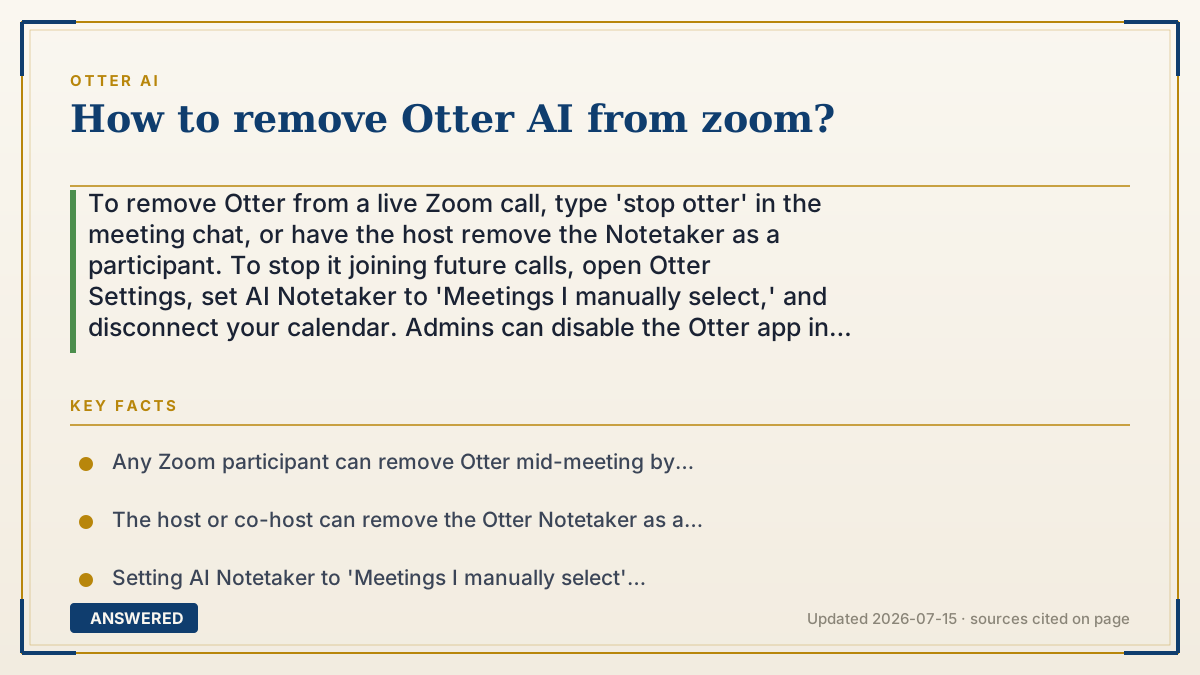
How to remove Otter AI from zoom?
To remove Otter from a live Zoom call, type 'stop otter' in the meeting chat, or have the host remove the Notetaker as a participant. To stop it joining future calls, open Otter Settings, set AI Notetaker to 'Meetings I manually select,' and disconnect your calendar. Admins can disable the Otter app in the Zoom Marketplace.
Why — the first-principles explanation
Otter shows up in Zoom because you (or a coworker) linked a calendar to Otter. Otter reads your upcoming events, spots the Zoom link, and sends its Notetaker bot to join automatically. So removing it means breaking one of two things: the live bot in the current call, or the automation that keeps sending it.
Removing it from the current call is easy because the bot is just another participant. Zoom lets any attendee post the command 'stop otter' in chat, which tells the bot to leave, and a host can also remove it like any guest. This is a deliberate courtesy control so people who did not invite it can still get it out.
Stopping it permanently means cutting the automation trigger. Switching Otter's AI Notetaker from 'auto-join every meeting' to 'meetings I manually select,' or disconnecting the calendar entirely, removes the standing instruction that keeps dispatching the bot. For a whole company, a Zoom admin can disable the Otter app at the account level in the Zoom Marketplace, and you can also revoke Otter's access in your Google or Microsoft account so it can never read your calendar again.
An example that makes it click
Imagine a robot assistant that reads your paper day-planner every morning and walks itself into whatever meetings it finds. Telling it 'leave' at the door (typing 'stop otter' in chat) gets it out of today's meeting. But it will show up again tomorrow, because it's still reading your planner. To really stop it, you take the planner away, that's disconnecting the calendar, or you tell it 'only come when I personally invite you.'
How to do it
- During a live call: type 'stop otter' in the Zoom chat, or have the host remove the Otter Notetaker as a participant.
- In Otter, open Settings and go to the AI Notetaker settings.
- Change the auto-join option to 'Meetings I manually select' so Otter no longer joins every calendar event.
- Disconnect the calendar Otter is using under Settings to stop it reading your schedule.
- Revoke access at myaccount.google.com/security (Google) or account.microsoft.com/privacy (Microsoft) by removing Otter.ai.
- For an organization, a Zoom admin can disable the Otter app at marketplace.zoom.us under Admin App Management.
Key facts
- Any Zoom participant can remove Otter mid-meeting by typing 'stop otter' in the chat.
- The host or co-host can remove the Otter Notetaker as a participant during the call.
- Setting AI Notetaker to 'Meetings I manually select' stops Otter from auto-joining synced meetings.
- Disconnecting the calendar in Otter, or revoking access in your Google/Microsoft account, cuts off future auto-joins.
- A Zoom admin can disable the Otter app account-wide in the Zoom App Marketplace under Admin App Management.
Open the official product site and confirm the current access, plans and terms.
▶ The 60-second explainer (script)
Need to get Otter AI out of your Zoom meeting? There are two situations. Right now, in the call: just type 'stop otter' in the Zoom chat. Any participant can do it, even without an Otter account, and the Notetaker bot leaves. The host can also remove it as a participant. For the future, you need to stop the automation. Otter joins because it's reading your calendar, so open Otter's settings, find AI Notetaker, and switch it to 'meetings I manually select.' Better yet, disconnect the calendar entirely, or go into your Google or Microsoft account security settings and remove Otter's access. And if you're an admin who wants Otter blocked for the whole company, sign in to the Zoom App Marketplace and disable the Otter app under Admin App Management. Pick the level that fits: one meeting, your account, or the whole org.
What authoritative sources say
People also ask
Can I remove Otter if I'm not the host?
Yes. Any participant can type 'stop otter' in the Zoom chat to make the Notetaker leave, even without an Otter account.
Why does Otter keep rejoining my meetings?
Because it's still connected to your calendar and set to auto-join. Switch AI Notetaker to 'meetings I manually select' or disconnect the calendar to stop it.
How do I block Otter for my whole company?
A Zoom admin can disable the Otter app in the Zoom App Marketplace under Admin App Management > Apps on Account.
Does removing Otter delete past transcripts?
No. Removing the bot or disconnecting the calendar only stops future recording; transcripts already saved in the Otter account remain until deleted there.
The same question, asked other ways
- How to stop Otter with chat command in zoom?