How to use Canva magic studio?
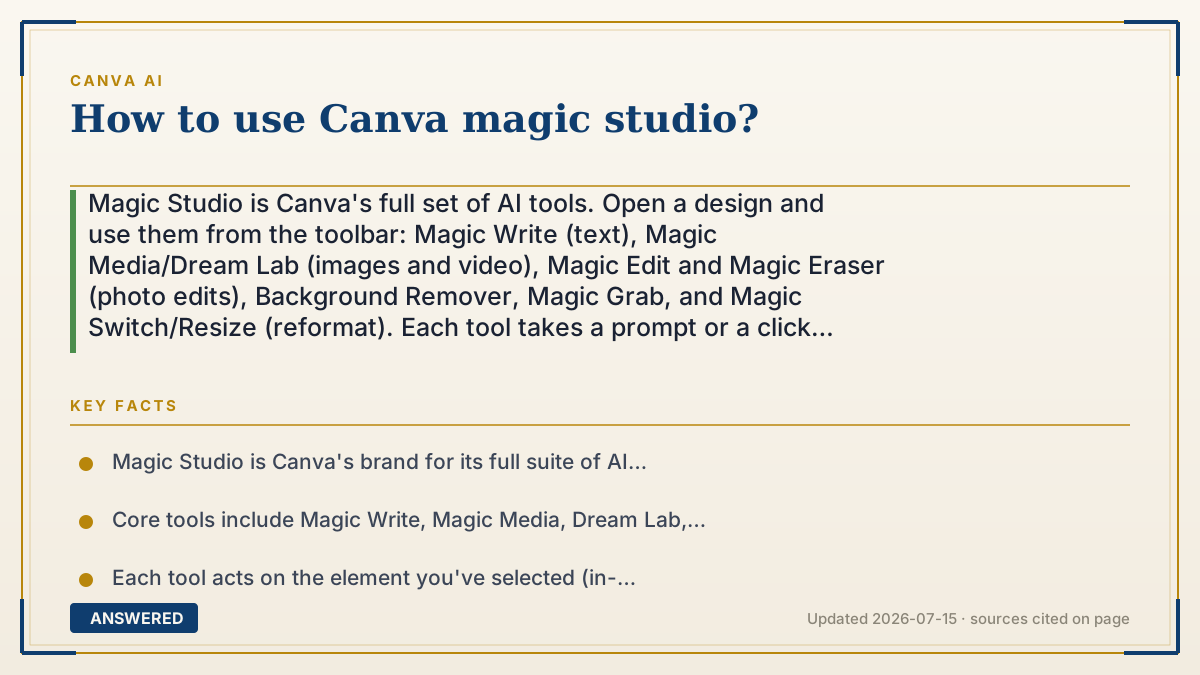
Magic Studio is Canva's full set of AI tools. Open a design and use them from the toolbar: Magic Write (text), Magic Media/Dream Lab (images and video), Magic Edit and Magic Eraser (photo edits), Background Remover, Magic Grab, and Magic Switch/Resize (reformat). Each tool takes a prompt or a click and draws from your monthly AI allowance.
Why — the first-principles explanation
Magic Studio isn't a single app—it's Canva's umbrella brand for a dozen AI features wired into the editor. Understanding it means learning the categories: generate (make new text, images, video), edit (change existing photos), and transform (reformat or translate a whole design). Once you know which category your task falls in, the right Magic tool is obvious.
The design principle is in-context AI: each tool acts on what you've selected. Click a photo and Magic Eraser removes an object from that photo; select text and Magic Write rewrites that text; hit Magic Switch and Canva reflows this design into a new size or language. You never leave your canvas, which is what makes a suite of powerful tools feel simple.
Every Magic tool spends from the same monthly AI allowance, tiered by cost. Text edits are cheap (Standard); image and video generation are pricier (Premium); the newest models are Ultra. So the practical skill is matching the tool to the job and knowing the heavy ones (image, video) drain your pool faster—especially on Free's small allowance.
An example that makes it click
Think of Magic Studio as a Swiss Army knife with a dozen blades. There's a pen (Magic Write) for words, a camera tool (Magic Media, Dream Lab) for pictures, an eraser (Magic Eraser) to wipe out a photobomber, scissors (Background Remover) to cut someone out, and a copier (Magic Resize) that instantly makes your poster into an Instagram post, a story, and a flyer.
You keep the same knife in hand the whole time—just flip out the blade you need. And each cut uses a little of your monthly 'battery,' with the fancy blades using more.
How to do it
- Open or create a design in Canva.
- For text: select a text box and use Magic Write to draft or rewrite copy.
- For images: open Apps and use Magic Media or Dream Lab to generate visuals.
- For photo edits: select a photo, then use Magic Edit, Magic Eraser, Magic Expand, or Magic Grab.
- For cutouts: click Background Remover (paid plans) to isolate a subject.
- For reformatting: use Magic Switch/Resize to turn one design into other sizes or languages.
- Track your monthly AI allowance; image and video tools use it faster than text.
Key facts
- Magic Studio is Canva's brand for its full suite of AI tools, built into the editor.
- Core tools include Magic Write, Magic Media, Dream Lab, Magic Edit, Magic Eraser, Magic Expand, Magic Grab, Background Remover, and Magic Switch/Resize.
- Each tool acts on the element you've selected (in-context editing).
- All tools share your monthly AI allowance, tiered Standard/Premium/Ultra by cost.
- Some tools (e.g., Background Remover) require a paid Pro or Business plan.
Open the official product and verify the active account, workspace and data settings before you begin.
▶ The 60-second explainer (script)
How do you use Canva Magic Studio? First, know what it is: Magic Studio is Canva's whole collection of AI tools, all built right into the editor. The easiest way to master it is to think in three jobs. One, generate: Magic Write makes text, and Magic Media or Dream Lab make images and video. Two, edit: select a photo and use Magic Eraser to delete a photobomber, Magic Expand to widen the shot, or Background Remover to cut out the subject. Three, transform: Magic Resize turns one design into every social format at once, and Magic Switch can even translate it. The beautiful part is that each tool works on whatever you've clicked, so you never leave your canvas. Just remember every tool sips from your monthly AI allowance—text is cheap, images and video cost more—and a few tools like Background Remover need a paid plan. Match the tool to the job and you've got it.
What authoritative sources say
People also ask
What is Canva Magic Studio?
It's Canva's suite of AI tools—writing, image and video generation, photo editing, and design reformatting—built into the editor.
Is Magic Studio free?
Many tools work on the Free plan within a small monthly allowance, but some, like Background Remover, require Pro or Business.
Which Magic Studio tool removes backgrounds?
Background Remover isolates a subject in one click. It's a paid feature on Pro and Business plans.
Can Magic Studio resize my design?
Yes. Magic Switch/Resize instantly reformats one design into other sizes and can translate the text too.