How to download presentation from Gamma app?
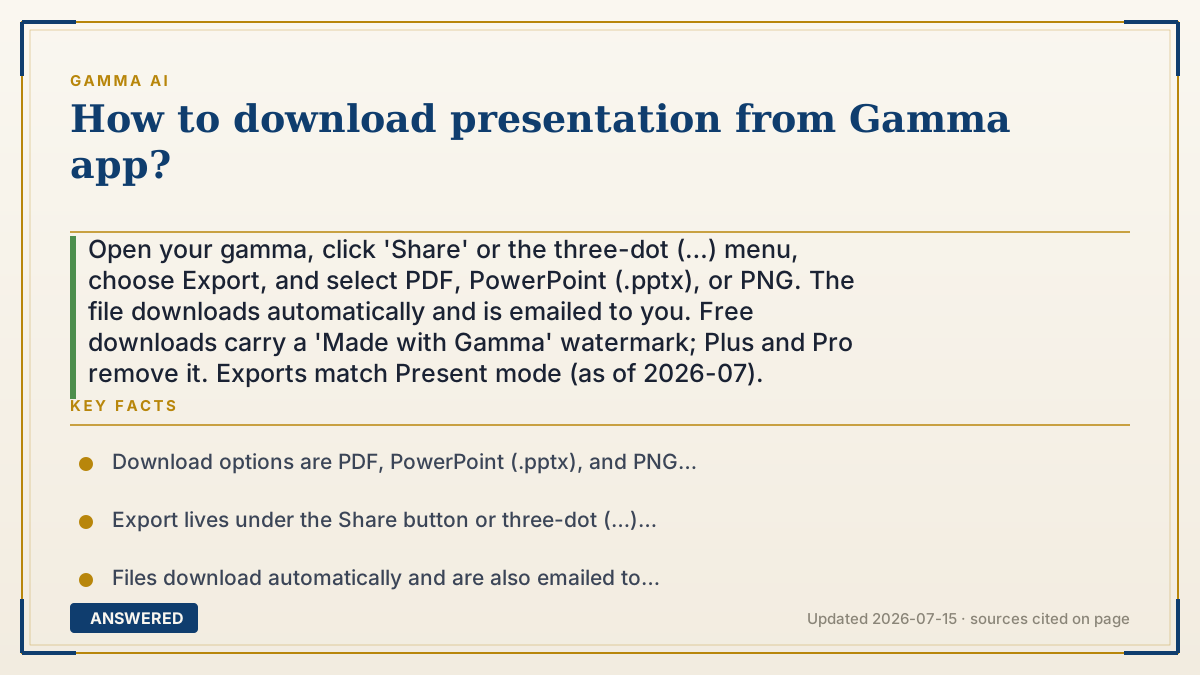
Open your gamma, click 'Share' or the three-dot (…) menu, choose Export, and select PDF, PowerPoint (.pptx), or PNG. The file downloads automatically and is emailed to you. Free downloads carry a 'Made with Gamma' watermark; Plus and Pro remove it. Exports match Present mode (as of 2026-07).
Why — the first-principles explanation
'Downloading' from Gamma means exporting a copy off the cloud. Your deck normally lives online as interactive cards; a download converts it into a portable file format, PDF for universal viewing, PPTX for PowerPoint editing, PNG for images. Each format is a different snapshot of the same cards.
Because it's a snapshot of Present mode, what you download reflects the presentation view, and interactive elements flatten. Choosing the right format matters: PDF to share and print, PPTX to keep editing in PowerPoint, PNG to drop single slides into other documents.
The watermark gate is the freemium rule again: free downloads say 'Made with Gamma,' paid plans don't, and the subscription is per workspace. So a clean download requires the deck to be in your paid workspace.
An example that makes it click
It's like taking a copy of a document home from a library computer. You can save it as a PDF to read anywhere, or as an editable file to keep working on, or snap a photo of one page. The library's free printer stamps its logo in the corner (the watermark); a paid membership prints it clean.
How to do it
- Open the presentation you want to download in Gamma.
- Click 'Share' in the top-right, or the three-dot (…) menu.
- Choose 'Export.'
- Select your format: PDF, PowerPoint (.pptx), or PNG.
- The file downloads automatically and Gamma emails you a copy; for no watermark, use a Plus or Pro workspace.
Key facts
- Download options are PDF, PowerPoint (.pptx), and PNG (as of 2026-07).
- Export lives under the Share button or three-dot (…) menu.
- Files download automatically and are also emailed to you.
- Free downloads include a 'Made with Gamma' watermark; paid plans remove it.
- Exports reflect Present mode, so interactive elements flatten.
Open the official product site and confirm the current access, plans and terms.
▶ The 60-second explainer (script)
Want to download a presentation from Gamma? Here's the whole process. Open your gamma, then click Share in the top-right, or the three-dot menu. Choose Export, and now pick your format. You've got three options, and the right one depends on your goal. Choose PDF if you just want to share or print it, it opens anywhere and looks identical on every device. Choose PowerPoint, the .pptx option, if you want to keep editing it in PowerPoint. Or choose PNG to save slides as images you can drop into other documents. Whichever you pick, the file downloads automatically, and Gamma emails you a copy too. One heads-up: free accounts get a small 'Made with Gamma' watermark on downloads. To remove it, your deck needs to be in a Plus or Pro workspace first. And since exports capture your Present view, interactive elements like videos become static. That's how you download from Gamma.
What authoritative sources say
People also ask
What formats can I download?
PDF, PowerPoint (.pptx), and PNG as of 2026-07.
Can I download on the free plan?
Yes, but downloads include a 'Made with Gamma' watermark until you upgrade.
Where does the file go?
It downloads to your device automatically, and a copy is emailed to you.
Which format should I choose?
PDF to share or print, PowerPoint to keep editing, PNG for individual slide images.
The same question, asked other ways
- What's the easiest way to export a Gamma presentation?