How to make NotebookLM audio overview longer?
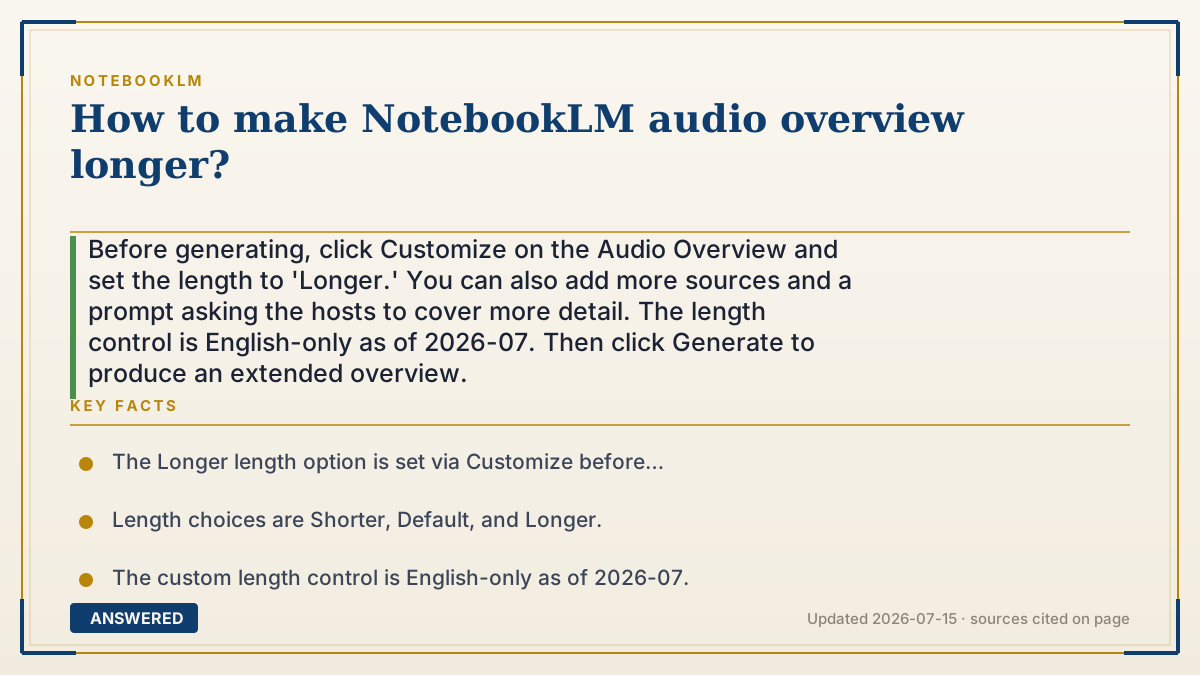
Before generating, click Customize on the Audio Overview and set the length to 'Longer.' You can also add more sources and a prompt asking the hosts to cover more detail. The length control is English-only as of 2026-07. Then click Generate to produce an extended overview.
Why — the first-principles explanation
Audio length is decided at the script-writing stage. NotebookLM chooses a target length, then writes a longer or shorter two-host dialogue to fit it. So making it longer means telling the model to write a more detailed script before it generates the voices.
The direct lever is the built-in length setting (Shorter, Default, Longer), which nudges how much of your material the hosts unpack. Two indirect levers also help: more and richer sources give the model more to talk about, and a custom prompt like 'go into depth on each section' pushes it toward fuller coverage.
Because length is set at generation time, you can't stretch a finished overview, you generate a new one on Longer. Note the length control is currently English-only, so in other languages you may need to rely on the prompt and richer sources instead. Even on Longer, output length isn't guaranteed to a precise minute count, it's a target, not a stopwatch.
An example that makes it click
Think of asking a tour guide for the 'extended tour.' Same museum, but instead of hitting the highlights in 10 minutes, they take 30 and explain each room in depth.
In NotebookLM you pick 'Longer' before you start, maybe add a couple more exhibits (sources), and say 'cover every section thoroughly.' The hosts then give you the extended tour of your material instead of the quick walkthrough.
How to do it
- Open your notebook and go to the Studio panel.
- Click Audio Overview, then click Customize before generating.
- Set the length option to Longer (available in English).
- Optionally add more relevant sources so there's more to discuss.
- Optionally type a prompt like 'go into depth on each topic.'
- Click Generate; to extend further, generate a new overview with these settings.
Key facts
- The Longer length option is set via Customize before generating.
- Length choices are Shorter, Default, and Longer.
- The custom length control is English-only as of 2026-07.
- Adding more sources and a detailed prompt can increase coverage and length.
- You cannot extend a finished overview; you generate a new one.
Open the official product site and confirm the current access, plans and terms.
▶ The 60-second explainer (script)
Want your NotebookLM audio overview to be longer? Here's the trick. Length is decided before the audio is made, when the AI writes the script, so you set it up front. Open the Studio panel, click Audio Overview, then click Customize. You'll see a length option: Shorter, Default, or Longer. Pick Longer. That tells the hosts to unpack more of your material. Want it even longer? Two more moves help. First, add more relevant sources, more content gives the hosts more to talk about. Second, type a prompt like 'go into depth on each section.' Then hit Generate. A couple of notes: the length setting is currently English only, so in other languages, lean on richer sources and a detailed prompt instead. And 'Longer' is a target, not an exact stopwatch, so the runtime can vary. If you want to change it later, you can't stretch an existing one, just generate a fresh overview with the Longer setting.
What authoritative sources say
People also ask
Where is the length setting?
In the Customize panel of the Audio Overview, choose Longer before you click Generate.
Why don't I see a length option?
The custom length control is English-only as of 2026-07, so it may not appear in other output languages.
Can I set an exact number of minutes?
No. Longer is a target that increases detail, but the exact runtime can vary; it's not a precise timer.
What else makes it longer?
Adding more relevant sources and prompting the hosts to cover each section in depth both increase length.