How to turn off AI?
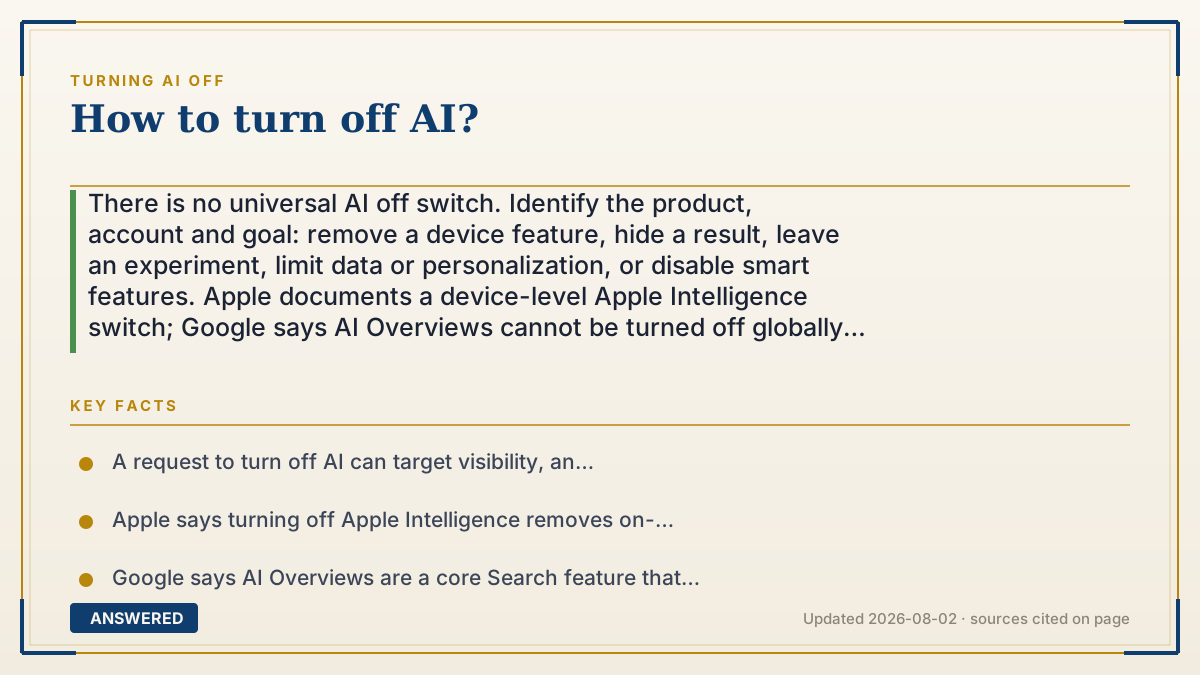
There is no universal AI off switch. Identify the product, account and goal: remove a device feature, hide a result, leave an experiment, limit data or personalization, or disable smart features. Apple documents a device-level Apple Intelligence switch; Google says AI Overviews cannot be turned off globally but offers a per-search Web filter; Gmail and Workspace have independent scopes. Use the current official control, not a permanent URL, extension or “master switch.”
Why — the first-principles explanation
“Turn off AI” can mean at least four different things: stop a feature from appearing, stop an experiment, stop content or activity being used for personalization or model improvement, or remove models from a device. Those are different controls with different effects. A device setting may remove on-device models, while a server product may offer only a result-view alternative; a private-data product may expose a consent control; an organization account may be governed by an administrator. The place where a model runs is a clue, not a universal rule. Start with the product name and the exact behavior you want to change. In Apple Intelligence, Apple says turning the feature off removes its on-device models, but requirements and availability vary by device, language and region. In ordinary Google Search, Google says AI Overviews are a core feature that cannot be turned off; the Web filter is a per-search text-link view, not an account-wide setting. Search Labs experiments such as AI in Search or AI Mode have separate controls only when your account is eligible. Search Services History and Personalized Recommendations manage history and personalization, not the existence of every AI result. Gmail, Chat, Meet, Google Workspace and other Google products have their own independent smart-feature scopes, as the Gmail page explains. Pinterest separately lets users request fewer AI Pins in recommendations and opt out of using saved or uploaded content to train Pinterest Canvas; neither control turns off every AI function. For other apps, use the vendor’s current help page and distinguish visibility, data use, model removal and billing. After changing a setting, test the same account and device, record the date and scope, and check administrator or regional rollout. Never promise that a toggle deletes existing data, stops all processing or applies across products unless the vendor says so. The safest workaround for an unavailable switch is to change the result view, disable the eligible experiment, use a different product, or leave the service—not to install an unsupported extension that may create privacy or security risk.
An example that makes it click
A person says, “I want Google AI gone.” That could mean four different things: no AI Overview in one search, leaving the AI Mode experiment, not saving Search Services History, or stopping Gemini and smart features in Gmail. The right actions are different: choose Web for the search, use Search Labs → Manage when the experiment appears, change the signed-in history setting, or open Gmail’s three smart-feature scopes. Treat the sentence as a routing question before touching a switch.
How to do it
- Name the product and the desired outcome: hide a panel, leave an experiment, stop data use or personalization, remove a device model, change a subscription or use a different service.
- Check the signed-in account, device, operating-system version, language, region and whether the account is personal, work or school. These can change the control that appears.
- For Apple Intelligence, use the current Apple Intelligence & Siri setting on a compatible device. Apple says turning it off removes on-device models; feature availability still varies.
- For an AI Overview in ordinary Google Search, run the query and choose the Web filter. Google says AI Overviews cannot be turned off globally and that Web shows text-based links without features such as Overviews.
- For Google Search Labs, open Labs → Manage and turn off the specific AI in Search or AI Mode experiment if it is present. A missing experiment means the account may not be enrolled or eligible.
- For Google Search data and personalization, review Search Services History and Personalized Recommendations. These are separate from hiding an AI result and may be rolling out gradually.
- For Gmail, Chat, Meet and Workspace, use the current smart-feature scopes: Gmail/Chat/Meet, Google Workspace and other Google products. Each is independent and has its own feature trade-offs.
- For Pinterest, route the request to its dedicated controls: Refine your recommendations can request fewer AI Pins, while Privacy and data can opt content out of Canvas training use. Neither is a universal AI-off switch.
- Avoid treating URL parameters, browser extensions or a device shortcut as a permanent vendor-supported master switch. Verify the official domain, scope and privacy implications first.
- After saving, test the exact feature on every relevant device, record what changed and recheck after a product or administrator rollout. Turn the setting back on only when you understand the trade-off.
Key facts
- A request to turn off AI can target visibility, an experiment, data use, personalization, device models or billing; these are not interchangeable.
- Apple says turning off Apple Intelligence removes on-device models, while compatibility, language and regional requirements affect availability.
- Google says AI Overviews are a core Search feature that cannot be turned off; the Web filter is a per-search text-based result view.
- Google Search Labs exposes separate controls for AI in Search and AI Mode experiments only when those experiments are available to the account.
- Search Services History can include generative AI responses and has a separate on/off and delete-activity path from Search result visibility.
- Gmail and Google Workspace document independent smart-feature scopes rather than one universal Google AI switch.
- Pinterest separates an AI-content recommendation preference from the option to opt saved or uploaded content out of Canvas training use; neither disables all platform AI.
- Account type, administrator policy, device, language, region and gradual rollout can change labels and available controls.
- Turning off one product or scope does not retroactively delete every related data record or disable AI in unrelated services unless the vendor explicitly says so.
- An unsupported extension or permanent search URL can break, change behavior or create privacy risk; prefer a documented product control or a clear workaround.
Route the problem to the right control
Match the product and data goal first, then compare privacy, limits, admin controls and alternatives without promising a universal AI-off switch.
▶ The 60-second explainer (script)
How do you turn off AI? First identify what you mean. Do you want to hide a result, leave an experiment, stop data use, remove a device model or cancel a plan? Apple documents a device-level Apple Intelligence switch. Google says AI Overviews in ordinary Search cannot be turned off, but the Web filter gives a text-link view for one search. Search Labs experiments have separate controls when available. Search Services History, Personalized Recommendations and Gmail or Workspace smart features manage different data and product scopes. Pinterest separates a see-fewer-AI recommendation preference from a Canvas training opt-out; neither turns off all AI. Check the signed-in account, region, device and admin policy, use the current official help page, test after saving and do not promise that one toggle disables every AI service or deletes all data.
What authoritative sources say
People also ask
Is there one switch that turns off all AI?
No. Each product and account has its own controls, and some features have no global off switch. Identify the product, behavior and data scope first.
How do I turn off AI Overviews?
Google’s current help page says AI Overviews cannot be turned off globally. For an individual search, choose the Web filter for text-based links without features such as AI Overviews.
Does the Web filter permanently remove AI from Search?
No. It changes one result view. Filter names, position and availability can change, and it does not control Gmail, Workspace, Search Labs or other Google products.
How do I leave Google AI Mode or AI in Search Labs?
Open Search Labs → Manage and turn off the specific experiment if it appears. AI in Search and AI Mode are separate experiments, and availability depends on the account.
How do I turn off Apple Intelligence?
On a compatible Apple device, use the Apple Intelligence & Siri setting documented by Apple. Apple says turning it off removes the on-device models; requirements and availability vary by platform and region.
How do I stop Google from saving Search AI activity?
Review Search Services History and Personalized Recommendations while signed in. Google says history can include generative AI responses and provides a turn-off path that can also offer activity deletion.
How do I turn off AI in Gmail?
Use Gmail’s current smart-feature controls. Google separates Gmail, Chat and Meet; Google Workspace; and other Google products. Turning one scope off does not automatically turn off the others.
Can Pinterest stop using my content to train AI?
Pinterest documents a Privacy and data setting that lets you opt out of using saved or uploaded content to train Pinterest Canvas. Its separate recommendation setting can request fewer AI Pins; neither control disables all AI on Pinterest.
Why is the setting missing?
Eligibility, account type, administrator policy, device, language, region and gradual rollout can all affect what appears. Check the signed-in account and current vendor help page.
Does turning off AI delete my data?
Not automatically. A feature switch, a data-use opt-out and a delete-activity request are different actions. Read the vendor’s wording and use a separate delete path when one is documented.
Are browser extensions or permanent search URLs safe ways to disable AI?
Treat them as unsupported unless the vendor documents them. They can break, change over time or receive access to sensitive browsing data. Prefer a first-party setting or a clearly understood workaround.
The same question, asked other ways
- How to get rid of AI?
- How to stop AI?