How to turn off AI in gmail?
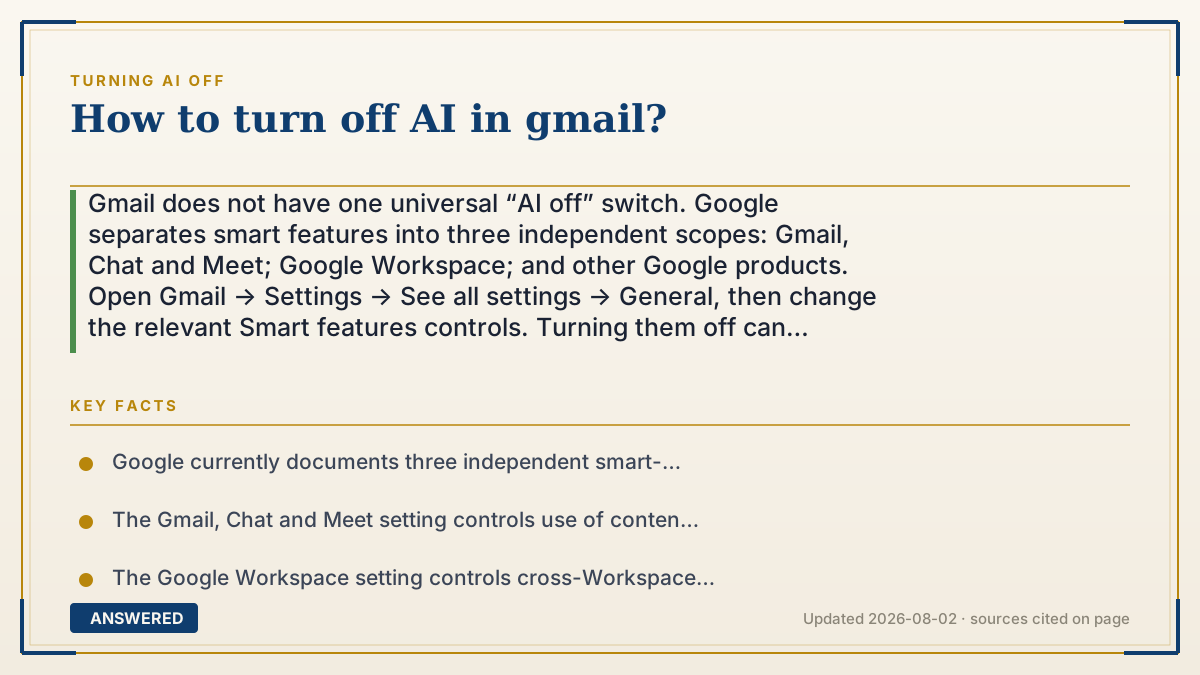
Gmail does not have one universal “AI off” switch. Google separates smart features into three independent scopes: Gmail, Chat and Meet; Google Workspace; and other Google products. Open Gmail → Settings → See all settings → General, then change the relevant Smart features controls. Turning them off can remove Smart Compose, Smart Reply, summary cards, Gemini in Workspace or Gmail-to-Calendar features. Admin defaults and regional rollout matter, and this is not a mail-deletion switch.
Why — the first-principles explanation
“AI in Gmail” is an umbrella for several product experiences and data controls, not one feature. Google’s current help page separates smart features in Gmail, Chat and Meet from smart features in Google Workspace and from smart features in other Google products. Each setting works independently. The Gmail, Chat and Meet control covers app-level personalization such as Smart Compose, Smart Reply and summary cards. The Workspace control covers cross-app experiences such as Gemini in Workspace, events extracted from Gmail into Calendar and personalized search. The other-products control covers selected experiences outside Workspace, which can vary by account and product. Turning off one scope therefore does not imply that the other scopes are off. Choose the smallest scope that matches the concern: the Gmail, Chat and Meet setting for suggestions, the Workspace setting for cross-app Workspace use, and the other-products setting for selected experiences elsewhere. Turning everything off can remove useful non-generative features along with Gemini-related experiences. Google’s update notice says the more granular controls do not alter underlying data-handling practices or privacy commitments, so do not promise that one checkbox retroactively deletes mail or stops every form of processing. Personal Gmail and work or school Workspace accounts can show different labels, defaults and controls. Workspace administrators can set a default while users can generally override it; Google documents different defaults in some regions and says admin changes can take up to 24 hours. If a switch is missing or keeps returning, identify the account, check the admin policy, update the mobile app if needed and recheck after rollout. Search has its own product and settings surface; Gmail controls are not a universal Google AI switch.
An example that makes it click
Suppose you want to stop Gemini suggestions in a personal Gmail account but keep travel and package information. Open Gmail on the web and inspect the three scopes instead of switching everything off. Start with the Gmail, Chat and Meet setting, test a new message and reply, then decide whether the Workspace or other-products scope also matches your concern. For a company account, ask the administrator which default is set, refresh after a change and document the setting date. This answers what actually changed without claiming that one toggle erased all processing.
How to do it
- Identify the account and goal: personal Gmail, work or school Workspace, stop writing suggestions, limit cross-product personalization, or disable every listed smart-feature scope.
- On a computer, open Gmail, select the gear icon, choose See all settings and stay on the General tab. Use the current Help Center wording if labels differ.
- Under Smart features, change “Turn on smart features in Gmail, Chat, and Meet.” This app-level control applies across signed-in devices and apps.
- Under Google Workspace smart features, select Manage Workspace smart feature settings. Turn Smart features in Google Workspace on or off separately from Smart features in other Google products.
- Choose the minimum scope that answers your concern. Turn off all three only when you accept losing the experiences attached to all three.
- Read the trade-off before saving: Smart Compose, Smart Reply, summary cards, Gmail-to-Calendar events, personalized search, Gemini in Workspace and other product-specific features may stop or change.
- On Android, iPhone or iPad, open the account’s smart-feature settings in the Gmail app. Update the app if a change notification does not appear; labels and layout can differ.
- For a work or school account, ask whether a Workspace administrator has set a default. Policy or rollout changes can reapply it and may take up to 24 hours.
- Test a new message, reply, inbox card, Calendar event and Workspace feature after the change. Check each independent scope and any individual feature setting that remains enabled.
- Record the account type, scopes changed, date, app or browser and observed trade-offs. Recheck the official Help Center after a product update; Gmail controls do not turn off unrelated Search settings.
Key facts
- Google currently documents three independent smart-feature scopes: Gmail, Chat and Meet; Google Workspace; and other Google products.
- The Gmail, Chat and Meet setting controls use of content and activity for smart features inside those apps, including Smart Compose, Smart Reply and summary cards.
- The Google Workspace setting controls cross-Workspace experiences such as Gmail-to-Calendar events, personalized search and Gemini features in Workspace.
- The other-Google-products setting controls selected experiences outside Workspace and can involve additional controls such as Web and App Activity or regional linked-service settings.
- Turning off a scope removes the experiences listed under that scope; individual features with their own controls may remain available.
- Google’s updated settings give users more granular control but do not alter underlying data-handling practices or privacy commitments.
- Workspace administrators can set a default for users, while users can generally choose their own setting; Google documents different defaults for some regions.
- Workspace admin changes can take up to 24 hours to propagate, and a browser refresh may be needed across open windows or tabs.
- Gmail smart-feature settings apply across signed-in devices and apps, but the mobile path and labels can differ from desktop.
- Gmail settings do not control unrelated Google product settings, including the separate Search experience.
Choose the Gmail smart-feature scope that matches your concern
Separate Gmail controls, Workspace controls, other-product personalization and Search; then weigh data boundaries, feature loss, admin defaults and current account behavior.
▶ The 60-second explainer (script)
How do you turn off AI in Gmail? Gmail has no single universal AI switch. Google separates three independent scopes: smart features in Gmail, Chat and Meet; smart features in Google Workspace; and smart features in other Google products. On the web, open Gmail, click the gear, choose See all settings, stay on General, and change the scope that matches your goal. The first can affect Smart Compose, Smart Reply and summary cards. Workspace settings can affect Gemini features, Gmail-to-Calendar events and personalized search. Other-product settings cover selected experiences outside Workspace. Work or school admins can set defaults, and changes may take time to propagate. Turning off a scope is not the same as deleting mail or stopping every Google AI feature. Test the account after saving and follow the current Help Center wording.
What authoritative sources say
People also ask
How many AI switches are there in Gmail?
Google currently documents three independent smart-feature scopes: Gmail, Chat and Meet; Google Workspace; and other Google products. Labels and locations can vary by account and product.
Is turning off one setting enough?
Only if that scope matches your goal. Turning off Gmail, Chat and Meet does not automatically turn off the separate Workspace or other-Google-products scopes.
How do I turn off Smart Compose and Smart Reply?
Start with Gmail → Settings → See all settings → General → the Smart features in Gmail, Chat and Meet control. Some individual Chat features can have their own controls.
What will I lose if I turn smart features off?
Depending on the scope, you may lose Smart Compose, Smart Reply, summary cards, Gmail-to-Calendar events, personalized search, Gemini in Workspace and selected features in other products. Google lists experiences under each setting.
Can I keep Gmail tabs or package tracking after turning AI off?
Those experiences may be tied to the scope you disabled. Read the current Help Center list and decide whether the privacy or workflow goal is worth the trade-off; there is not always a separate switch for each experience.
Can I change these settings on my phone?
Yes. Google documents controls in the Gmail app for Android, iPhone and iPad, but the layout can differ. Update the app if a change notification does not appear and verify the account after saving.
Can my company force Gemini or smart features on?
Workspace administrators can set a default, while users can generally override it. A later policy or rollout change can reapply a default, and admin changes may take up to 24 hours to propagate.
Are smart features off by default in Europe?
Google Workspace Admin Help documents different default behavior for domains based in the EEA, Japan, Switzerland and the UK. Treat the current account and admin console as authoritative.
Does turning off Gmail AI delete my email or stop all processing?
No broad promise should be made. The setting controls listed smart experiences; Google says the granular controls do not alter underlying data-handling practices or privacy commitments. Read the relevant privacy and retention documentation.
Does turning off Gmail AI turn off AI Overviews in Google Search?
No. Gmail smart-feature controls and Google Search are separate product settings. Check the current Search Help page for the Search experience and available controls.
Why do I still see an AI-looking feature after turning a setting off?
You may have changed only one independent scope, encountered a feature with its own control, or be seeing an account or admin rollout that has not propagated. Recheck scopes, refresh sessions and confirm the account type.
Can I turn the features back on later?
Yes, when the account and admin policy allow it. Recheck the current label and test the desired experience after saving.
The same question, asked other ways
- How to turn off gmail AI?
- How to turn off AI on gmail?