How to use apple AI?
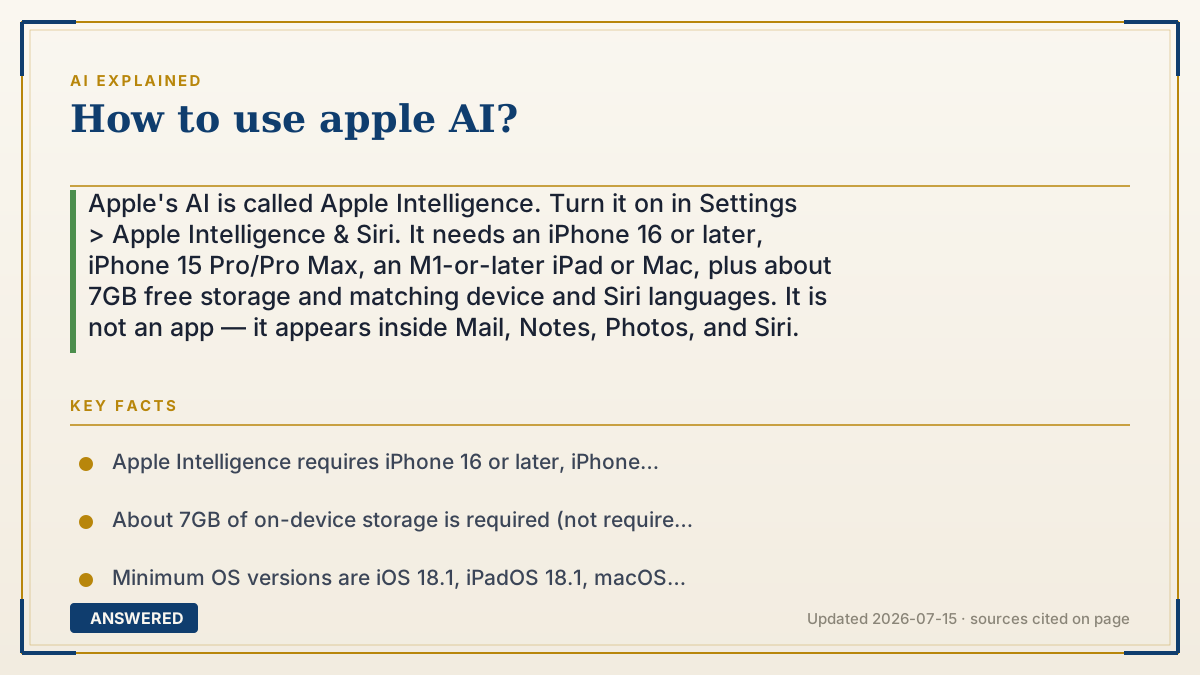
Apple's AI is called Apple Intelligence. Turn it on in Settings > Apple Intelligence & Siri. It needs an iPhone 16 or later, iPhone 15 Pro/Pro Max, an M1-or-later iPad or Mac, plus about 7GB free storage and matching device and Siri languages. It is not an app — it appears inside Mail, Notes, Photos, and Siri.
Why — the first-principles explanation
The single most common confusion: Apple Intelligence is not a chatbot you open. There is no icon. Apple built it as a layer woven into apps you already use, so it shows up as a Rewrite button in Mail, a Summarize option in Notes, a Clean Up tool in Photos, and a smarter Siri. If you are hunting for an app, you will never find it — you have to look inside the apps.
The hardware requirement confuses people too, and the reason is physical. Apple runs a large share of this processing on the device itself, not in a data center. That is a deliberate privacy choice, but it means your phone has to physically hold and run a multi-billion-parameter model. That takes serious neural-engine throughput and a lot of RAM. This is why an iPhone 15 (non-Pro) is excluded while an iPhone 15 Pro works — the Pro has the newer chip and more memory. It is not artificial upselling; the base model genuinely lacks the memory to hold the model resident. Same logic for the M1 cutoff on Mac and iPad. It also explains the ~7GB storage requirement: the models live on your disk.
When a request is too big for the phone, Apple uses Private Cloud Compute — Apple silicon servers that process the request without storing your data, with the software images published for independent inspection. That is a meaningfully different architecture from typical cloud AI, where your prompt lands on a general-purpose server. And separately, Siri can hand off questions to ChatGPT. That is opt-in, off by default, and prompts you before sending anything the first time. It is worth knowing that this specific path leaves Apple's privacy boundary.
One last practical thing: language matching. Apple Intelligence requires your device language and Siri language to be set to the same supported language. A mismatch is the number-one reason the toggle appears greyed out on hardware that qualifies. There is also a regional restriction — features do not currently work on devices purchased in mainland China, or when in mainland China with an Apple Account set to that region.
An example that makes it click
Apple Intelligence is less like hiring an assistant and more like getting sharper tools in a kitchen you already own. You don't summon a chef. The knife is just better now: your Mail app grew a "make this shorter" button, your Photos app grew an eraser, your Notes app can boil six paragraphs into three lines.
And the hardware rule makes sense with one detail: the recipe book lives in your kitchen, not at head office. That book is heavy — about 7 gigabytes of it — and it needs a big counter to work on. An older phone has a small counter. It's not that Apple won't let it cook; there's physically nowhere to open the book.
How to do it
- Check your device. Apple Intelligence requires iPhone 16 or later, iPhone 15 Pro or 15 Pro Max, iPad mini (A17 Pro), iPad with M1 or later, or Mac with M1 or later.
- Update your OS to a supported version (iOS 18.1 / iPadOS 18.1 / macOS Sequoia 15.1 or later; current releases as of 2026-07 are iOS 26 with iOS 27 announced).
- Free up storage — about 7GB is needed on device to hold the models.
- Set your device language and Siri language to the same supported language. A mismatch is the most common cause of a greyed-out toggle.
- Open Settings > Apple Intelligence & Siri and turn Apple Intelligence on. Then wait — models download in the background and features appear gradually, sometimes over hours.
- Try Writing Tools: select text in Mail, Notes, or almost any text field, then choose Rewrite, Proofread, or Summarize.
- Try Photos: open a photo, tap Edit, and use Clean Up to remove distracting objects. Search your library with plain descriptions.
- Try Notifications: summaries appear automatically once enabled; you can turn them off per app in Settings > Notifications.
- Try Siri: it now understands follow-up questions and can accept typed input — double-tap the bottom of the screen to type instead of speak.
- Optional: enable the ChatGPT extension in Settings > Apple Intelligence & Siri > ChatGPT. This is off by default and sends the request outside Apple's privacy boundary; you are prompted before anything is sent.
Key facts
- Apple Intelligence requires iPhone 16 or later, iPhone 15 Pro/Pro Max, iPad mini (A17 Pro), iPad or Mac with M1 or later, or Apple Watch Series 9/Ultra 2/SE 3 paired with a supported iPhone.
- About 7GB of on-device storage is required (not required on Apple Watch), and device language must match Siri language.
- Minimum OS versions are iOS 18.1, iPadOS 18.1, macOS Sequoia 15.1, visionOS 2.4, or watchOS 11 or later.
- Apple Intelligence is enabled in Settings > Apple Intelligence & Siri; it is free with no separate subscription (as of 2026-07).
- Apple Intelligence features do not currently work on supported devices purchased in mainland China, or for devices used in mainland China with an Apple Account registered there.
- The ChatGPT integration is opt-in and off by default; users are asked before any request is sent to OpenAI.
▶ The 60-second explainer (script)
How do you use Apple's AI? First: stop looking for the app. There isn't one. Apple Intelligence isn't a chatbot you open — it's baked into apps you already use. It's a Rewrite button in Mail. A Summarize option in Notes. A Clean Up eraser in Photos. A smarter Siri. If you're hunting for an icon, you'll never find it. To switch it on: Settings, then Apple Intelligence and Siri. But check your hardware first, because the requirements are real. iPhone 16 or later, or iPhone 15 Pro — not the regular 15. M1 or newer on iPad and Mac. And here's why that's not upselling. Apple runs a lot of this on the phone itself, not in a data center. That's a privacy decision, but it means your phone physically has to hold a multi-billion parameter model in memory. The base 15 doesn't have the RAM. That's also why it wants about seven gigabytes free — the models live on your disk. When something's too big for the phone, it goes to Private Cloud Compute: Apple silicon servers that don't store your data, with the software published for outside inspection. Separately, Siri can hand off to ChatGPT — that's opt-in, off by default, and it asks before sending. And the number one reason the toggle is greyed out on a phone that qualifies? Language mismatch. Your device language and your Siri language have to be the same supported language. Fix that, and it lights up.
What authoritative sources say
People also ask
Does Apple Intelligence cost money?
No. It is included free on supported devices as of 2026-07. The optional ChatGPT extension also works without an OpenAI account, though a paid ChatGPT plan unlocks more of its features.
Why is the toggle greyed out on my supported device?
Almost always a language mismatch — your device language and Siri language must be set to the same supported language. Insufficient free storage and regional restrictions are the other common causes.
Why doesn't my iPhone 15 work but the 15 Pro does?
The Pro has a newer chip and more RAM. Apple runs much of the processing on-device, which requires holding a large model in memory — the base 15 physically cannot.
Does Apple send my data to OpenAI?
Only if you enable the ChatGPT extension, which is off by default, and only after asking you first. Everything else stays on-device or goes to Apple's Private Cloud Compute.
I turned it on but see nothing. Is it broken?
Probably not. Models download in the background after you enable it, and features can take hours to appear. Stay on Wi-Fi and charged.